
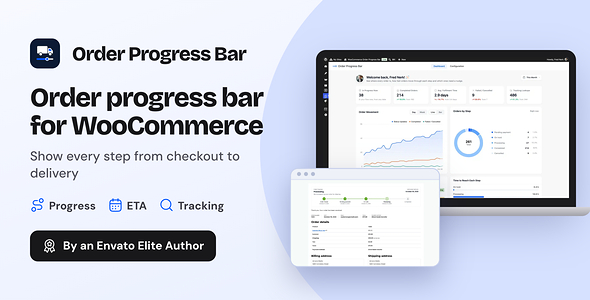
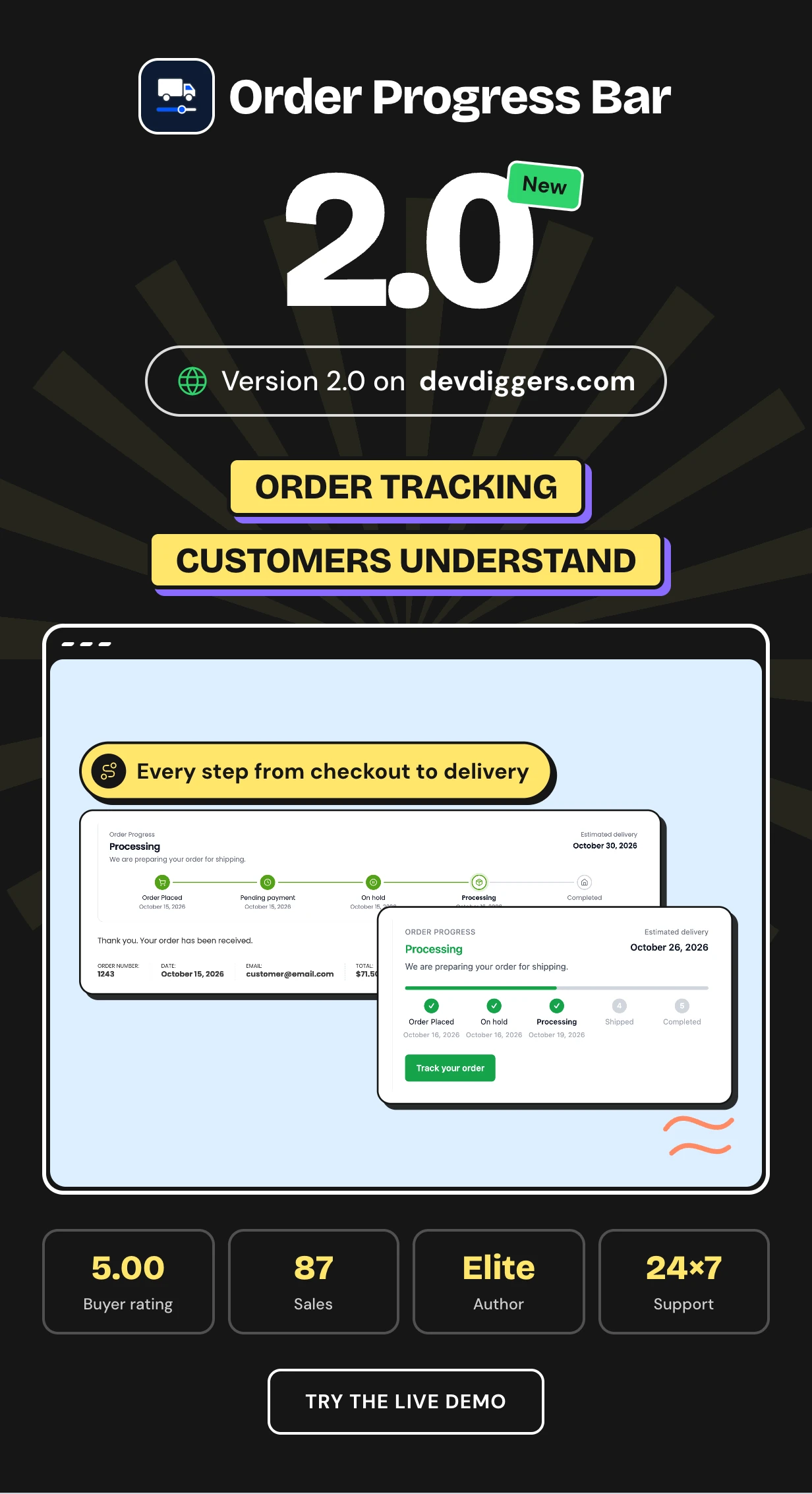
Order Progress Bar is a WooCommerce order tracking plugin that shows customers every step between checkout and delivery. It reads the order status you already set and draws it as a progress bar with dates, messages and an estimated delivery date.
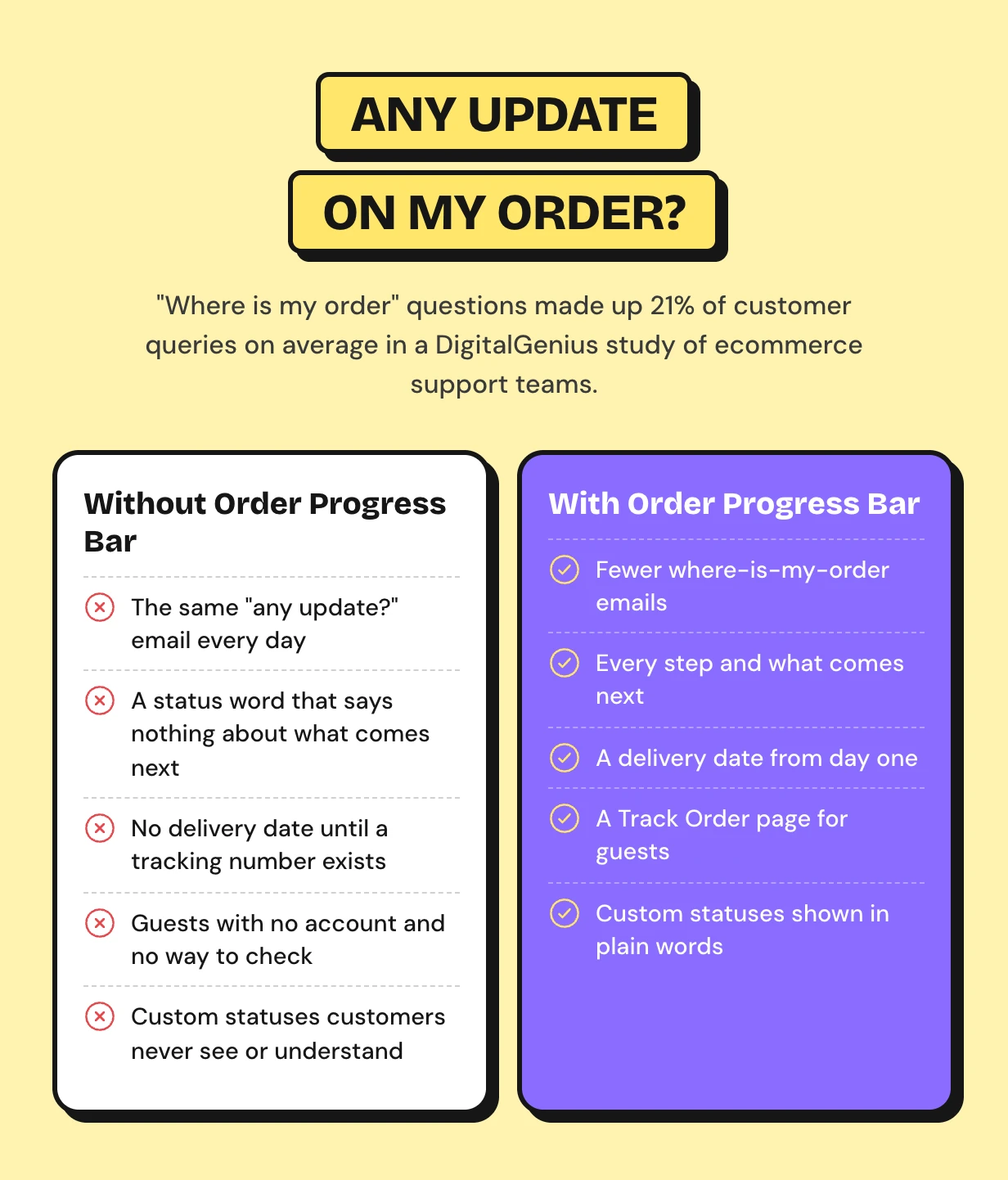
WooCommerce on its own shows one status word like Processing. It never says what comes next or when the parcel should arrive. Customers fill that gap by emailing you to ask where is my order.
It works as an order tracking page for guests, a progress bar in every order email and a fulfillment dashboard for you. No tracking numbers or carrier account are needed.
Every plan and the latest features: Order Progress Bar plugin page
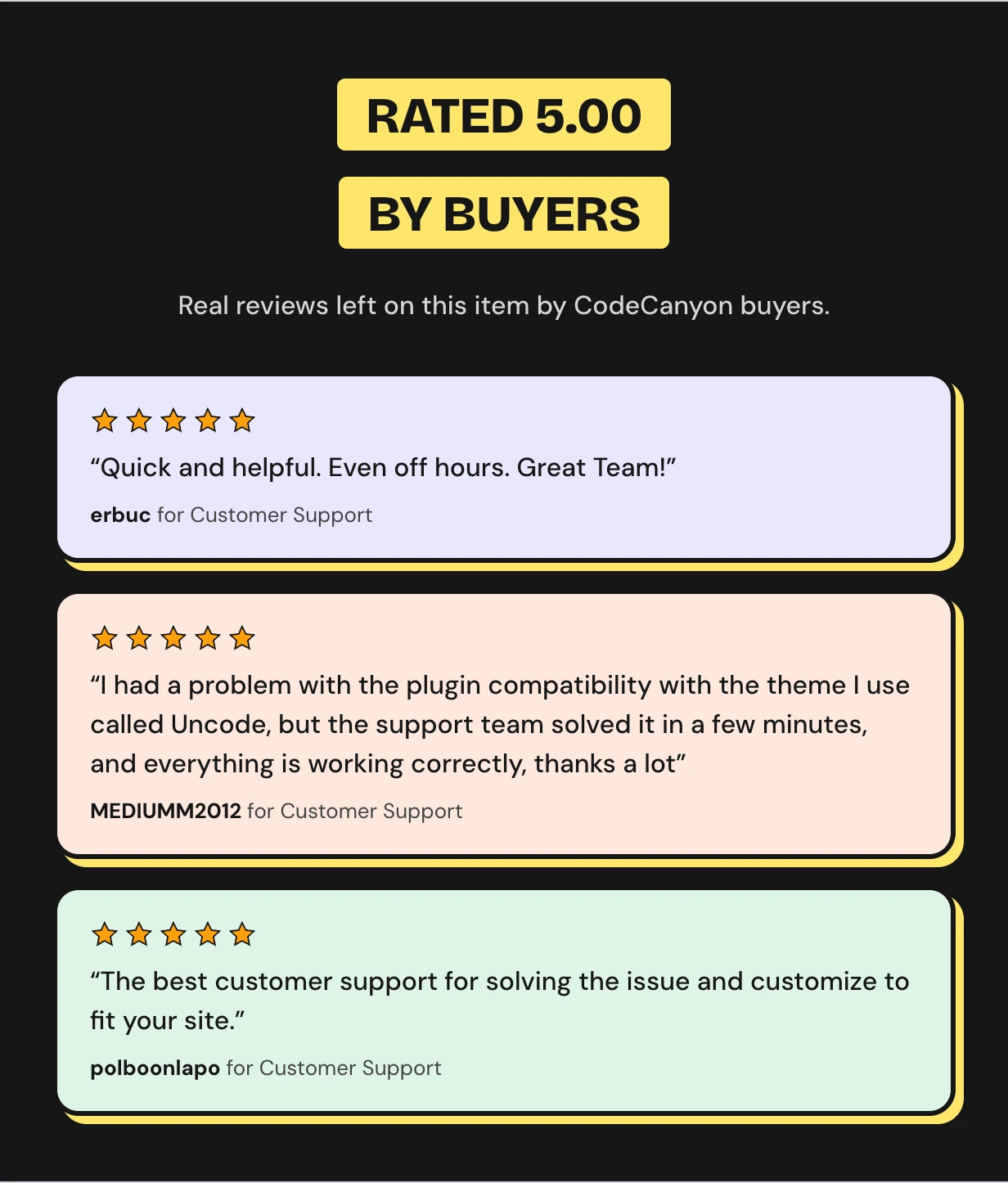
Rated 5.00 out of 5 by CodeCanyon buyers




Any update on my order
A customer pays and then sees one word. Processing tells them nothing about what happens next or when the parcel will arrive.
So they email you. Where is my order questions made up 21% of support queries in one DigitalGenius study, and they climb past a third in December.
How WooCommerce order tracking works with this plugin
You pick which order statuses count as steps and how many days each one takes. The bar then follows each order on its own. The setup wizard places it on first activation.
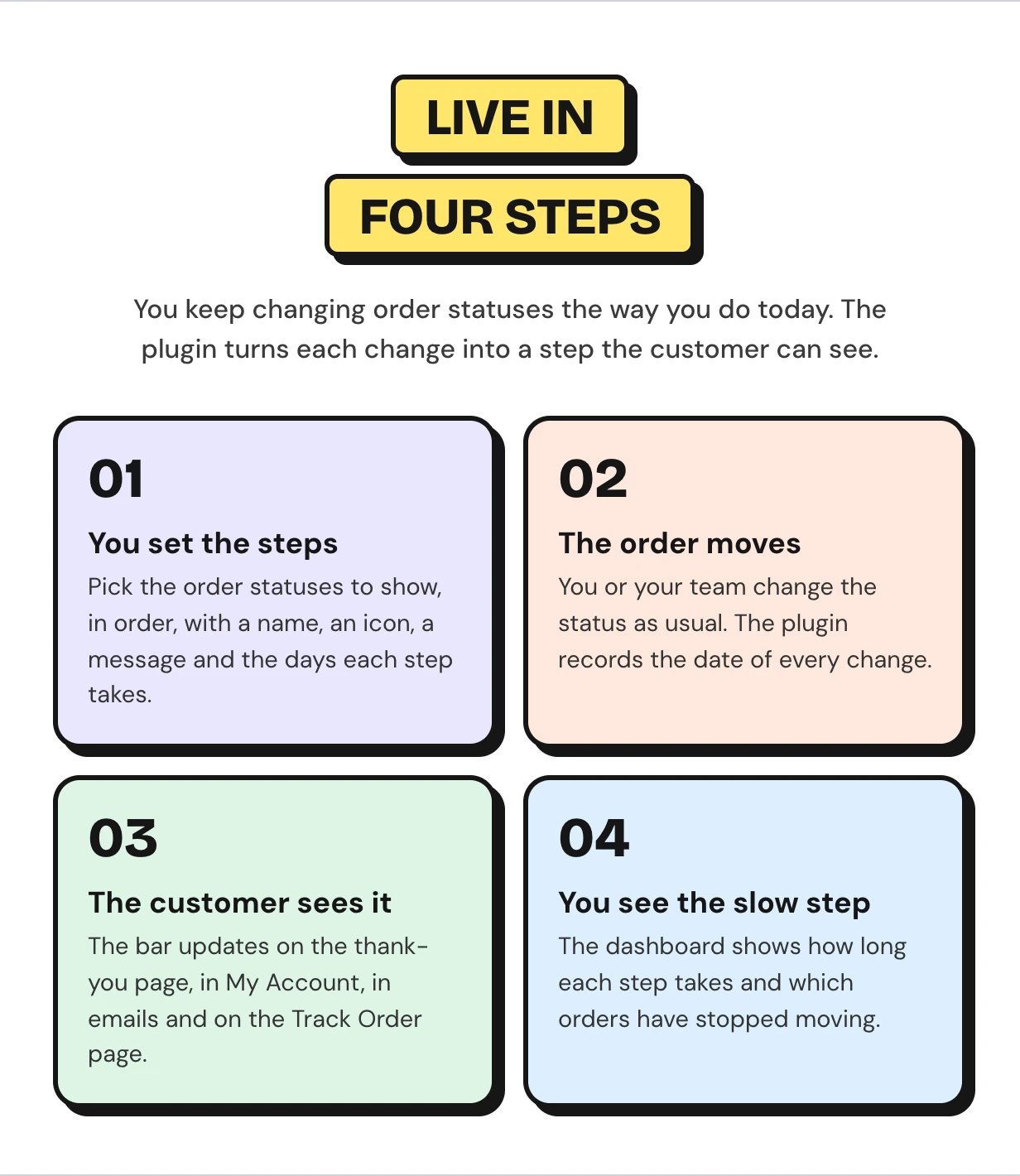
WooCommerce order tracking features
Every feature below ships in this one download. Customers see the bar after checkout, in My Account, in emails and on a Track Order page.
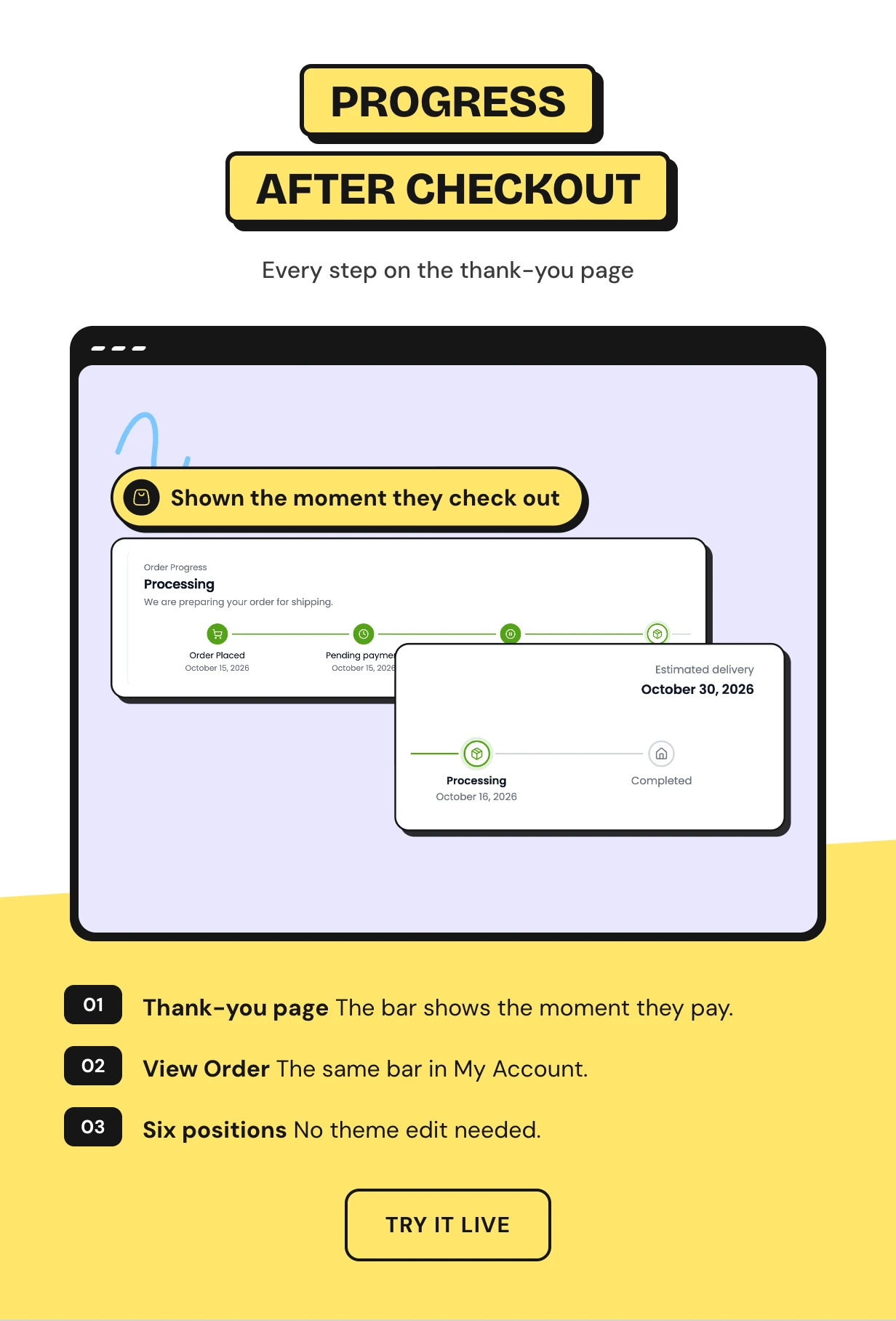
A WooCommerce order progress bar right after checkout
The moment an order is placed the thank-you page shows its steps. Customers see what is done, what happens next and when it should arrive.
The same bar sits on My Account View Order. Place it in any of six spots on each page with no theme edit.
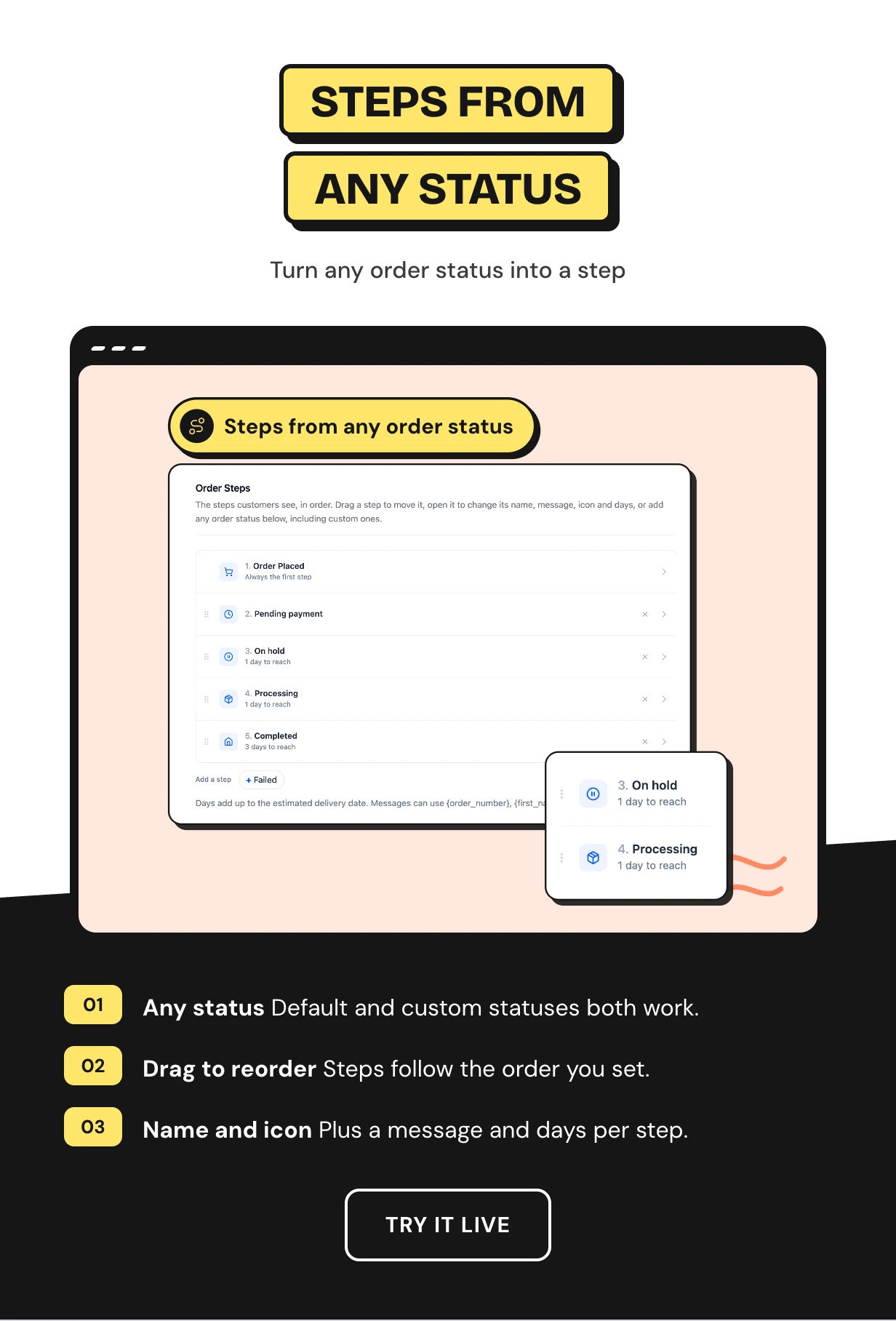
Steps built from any custom order status
Add order statuses as steps in one click and drag them into order. Default statuses and custom ones like Shipped or In production both work.
Open a step to give it a friendly name, one of 14 icons, a message and the days it usually takes. Internal status names never confuse a customer again.
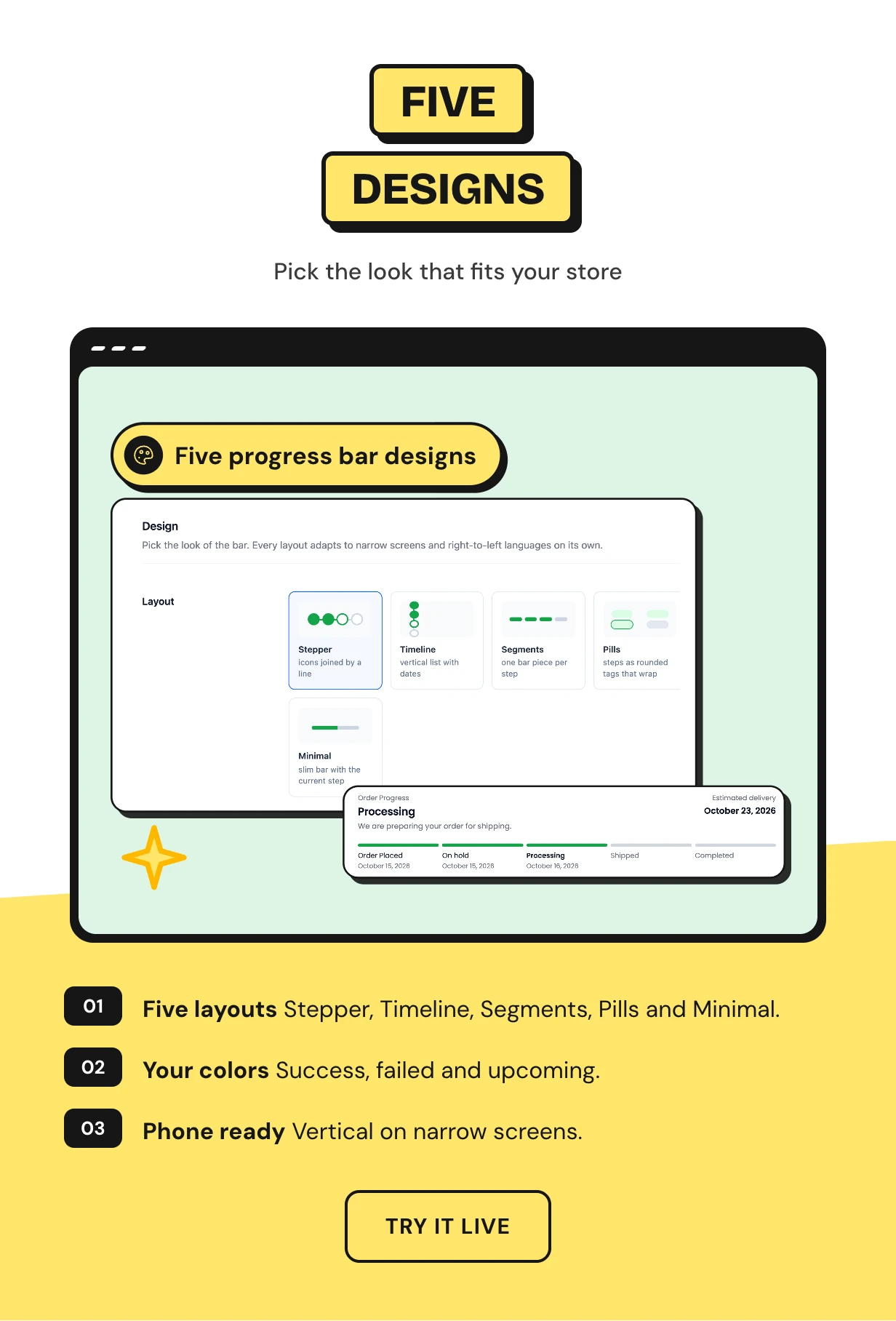
Five progress bar designs for order tracking
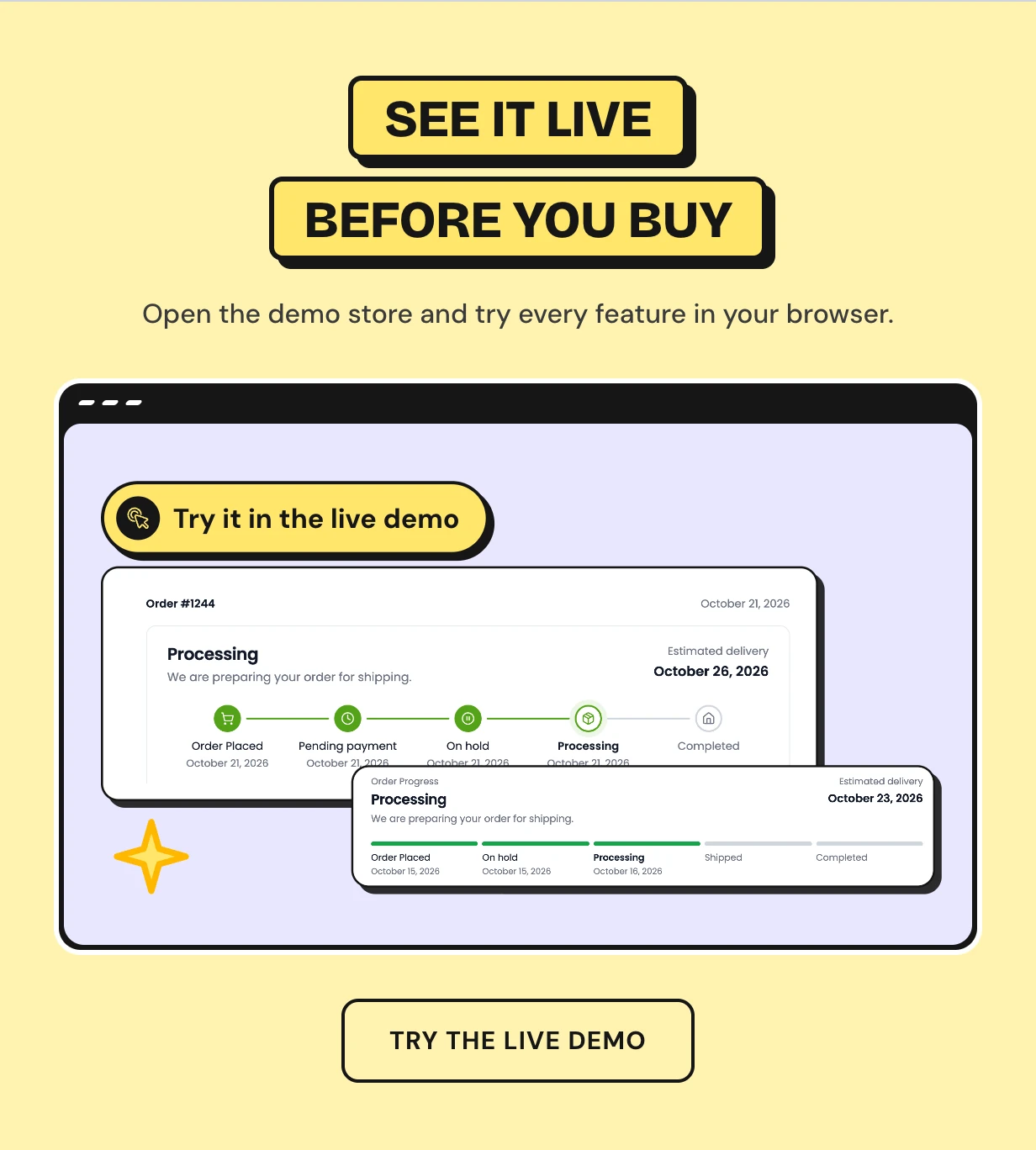
Stepper joins icons with a line. Timeline lists every step with its date and message.
Segments splits a bar into pieces, Pills shows steps as tags and Minimal shows a slim bar. The stepper turns into a vertical list on phones.
A WooCommerce order status timeline with dates and messages
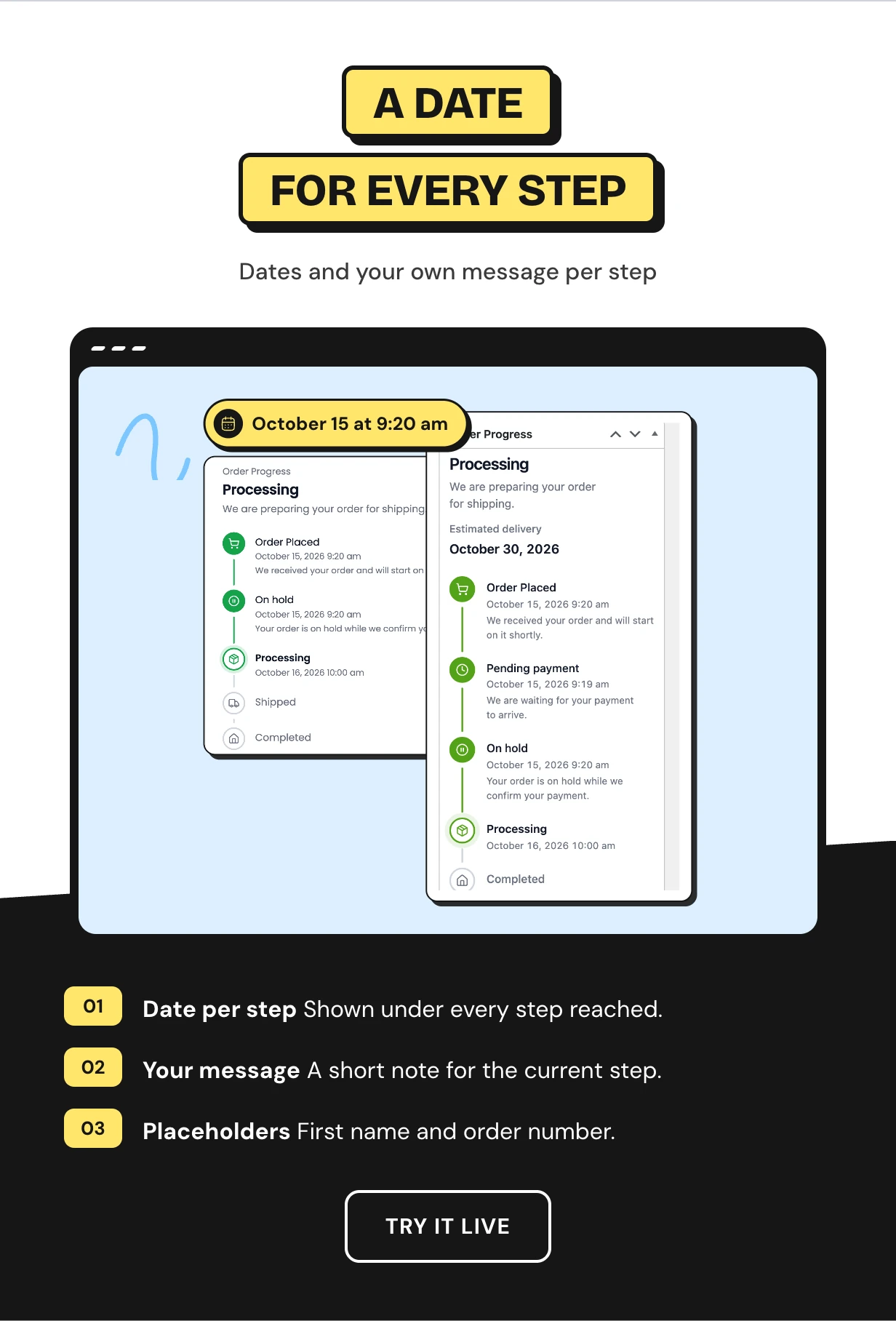
The plugin records every status change. Each step shows the day it happened and the current step carries a short message you write.
Messages can greet the customer by first name and quote the order number. Older orders use the WooCommerce paid and completed dates.
A WooCommerce estimated delivery date for every order
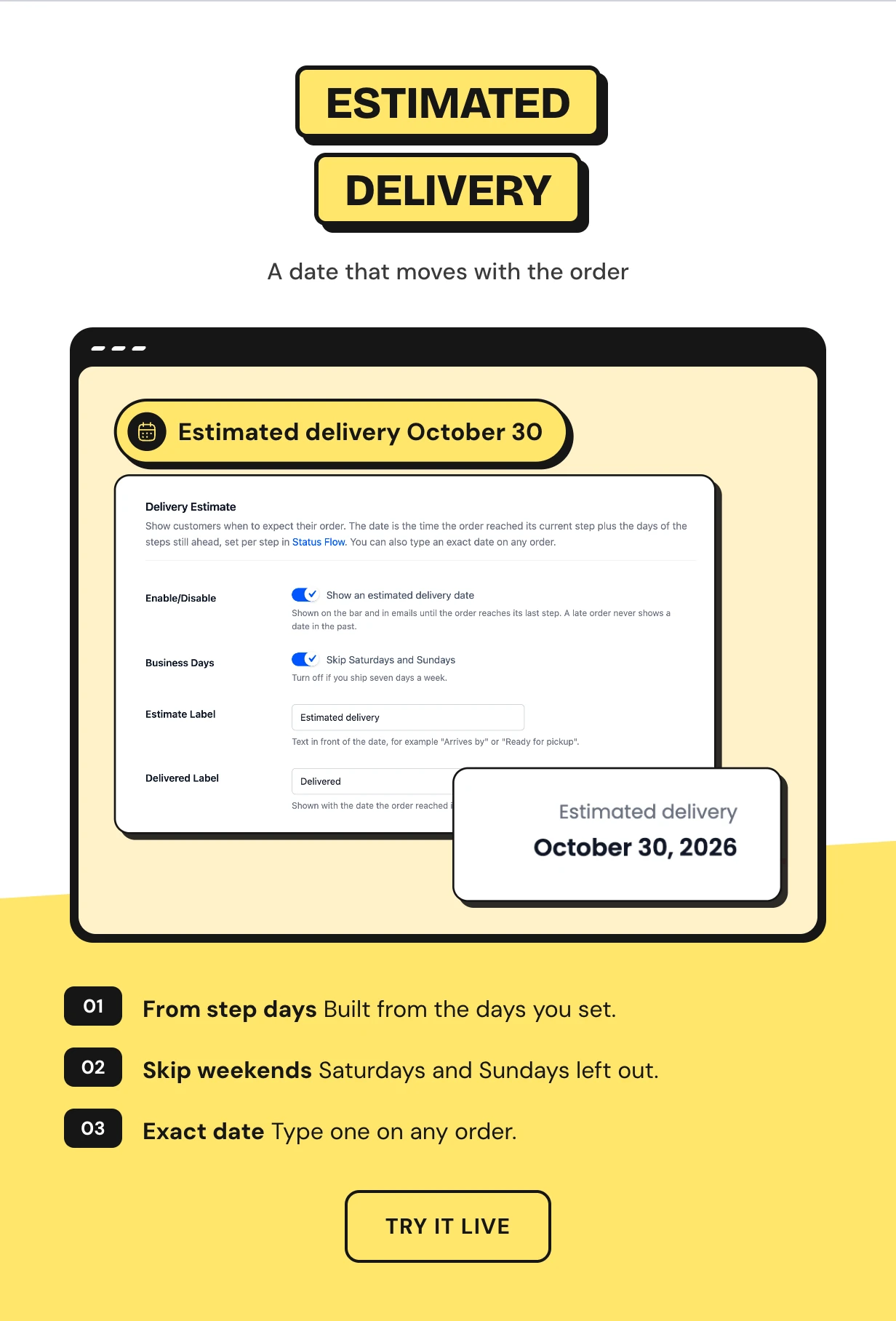
Set how many days each step takes. The plugin adds up the steps still ahead and shows a WooCommerce delivery date that moves with the order.
Weekends can be skipped and a late order never shows a date in the past. You can also type an exact date on any order.
An order tracking page for guest order tracking
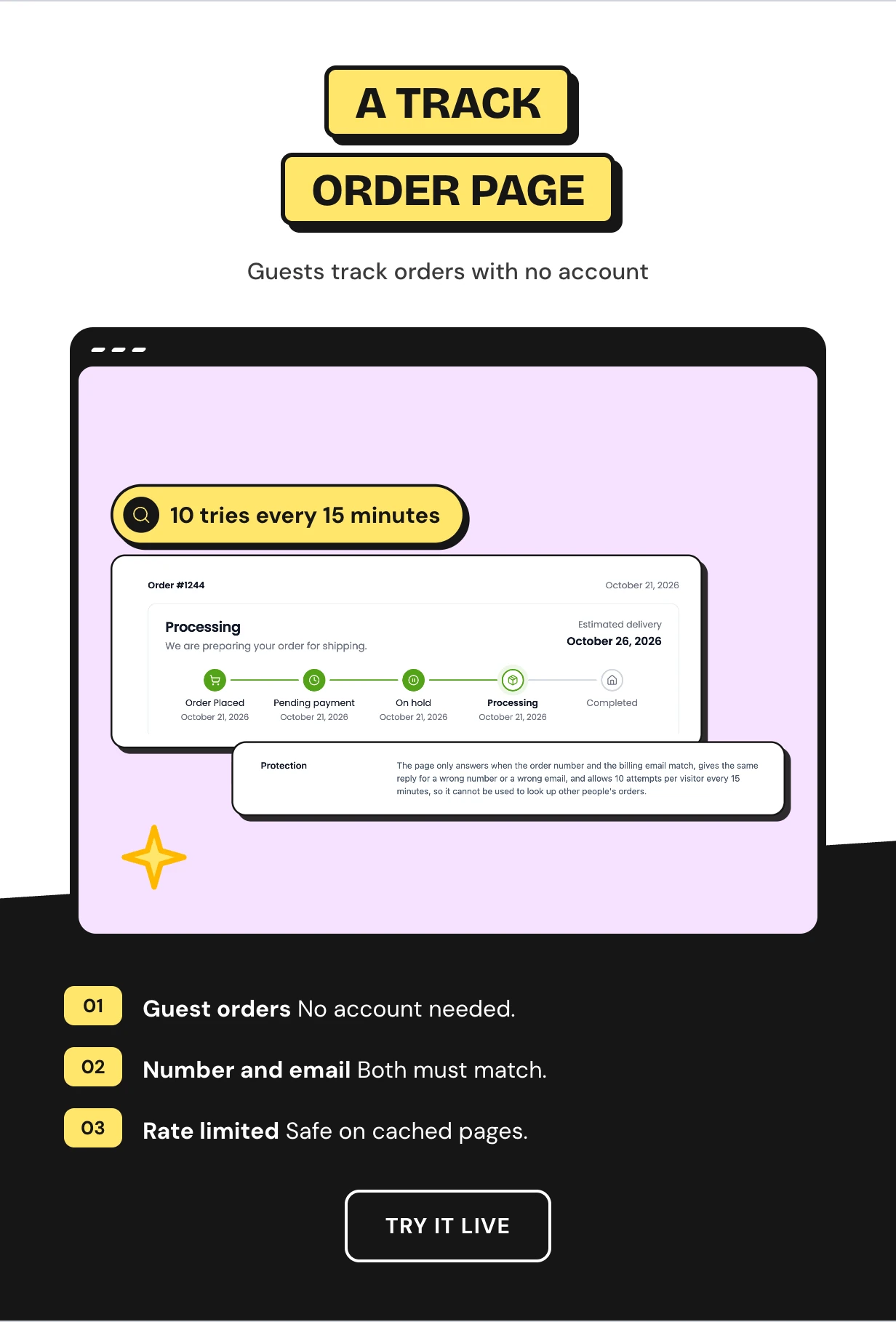
The plugin creates a Track Order page on install. Anyone can type an order number and the billing email to see the bar.
A wrong number or email gets one plain reply. Each visitor and each email gets 10 tries every 15 minutes.
Order status email notifications with the progress bar
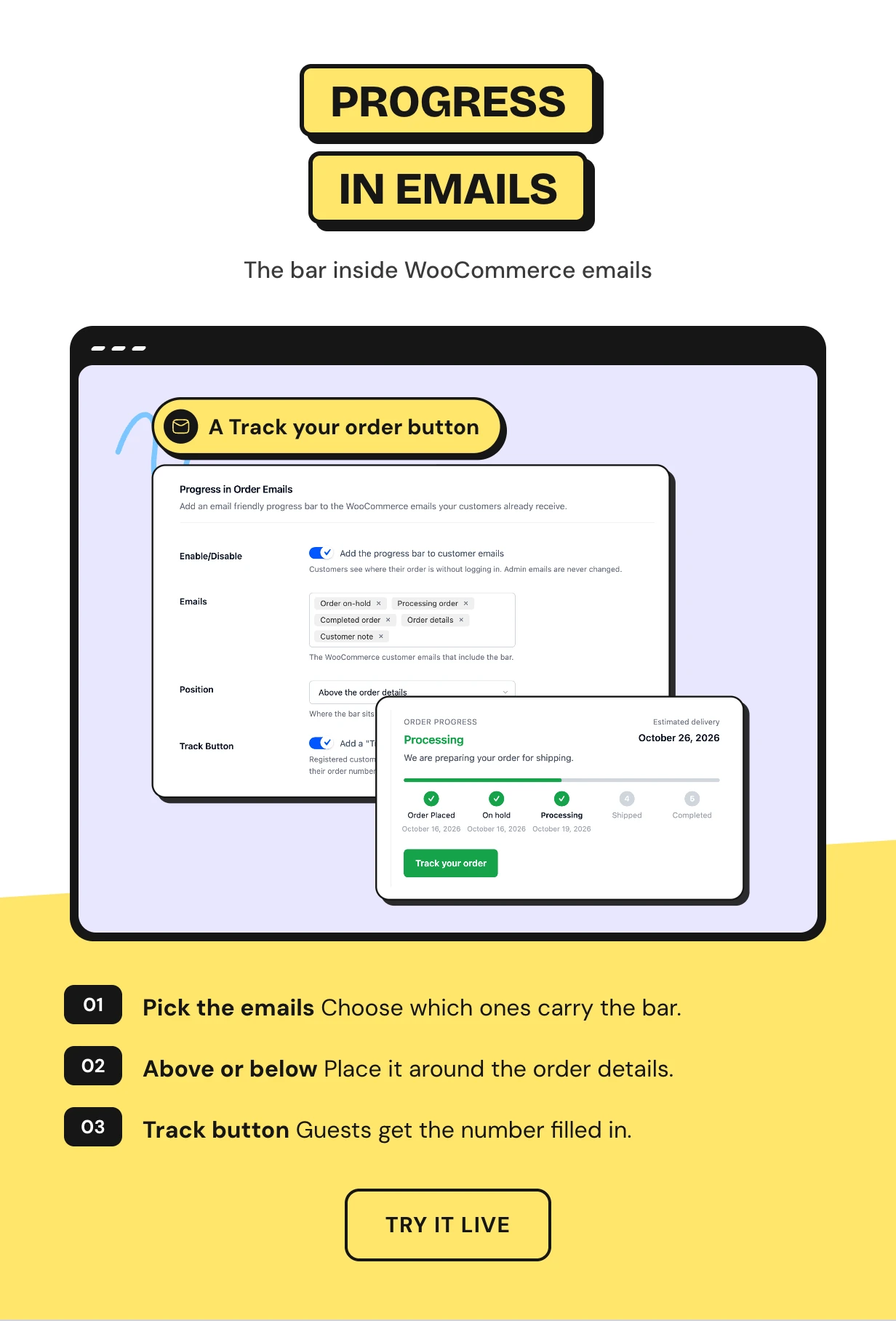
Processing, completed and other customer emails you pick show the bar above or below the order details. Customers see the journey without logging in.
A Track your order button takes registered customers to their order. Guests land on the Track Order page with the number filled in.
Emails for custom order status steps like Shipped
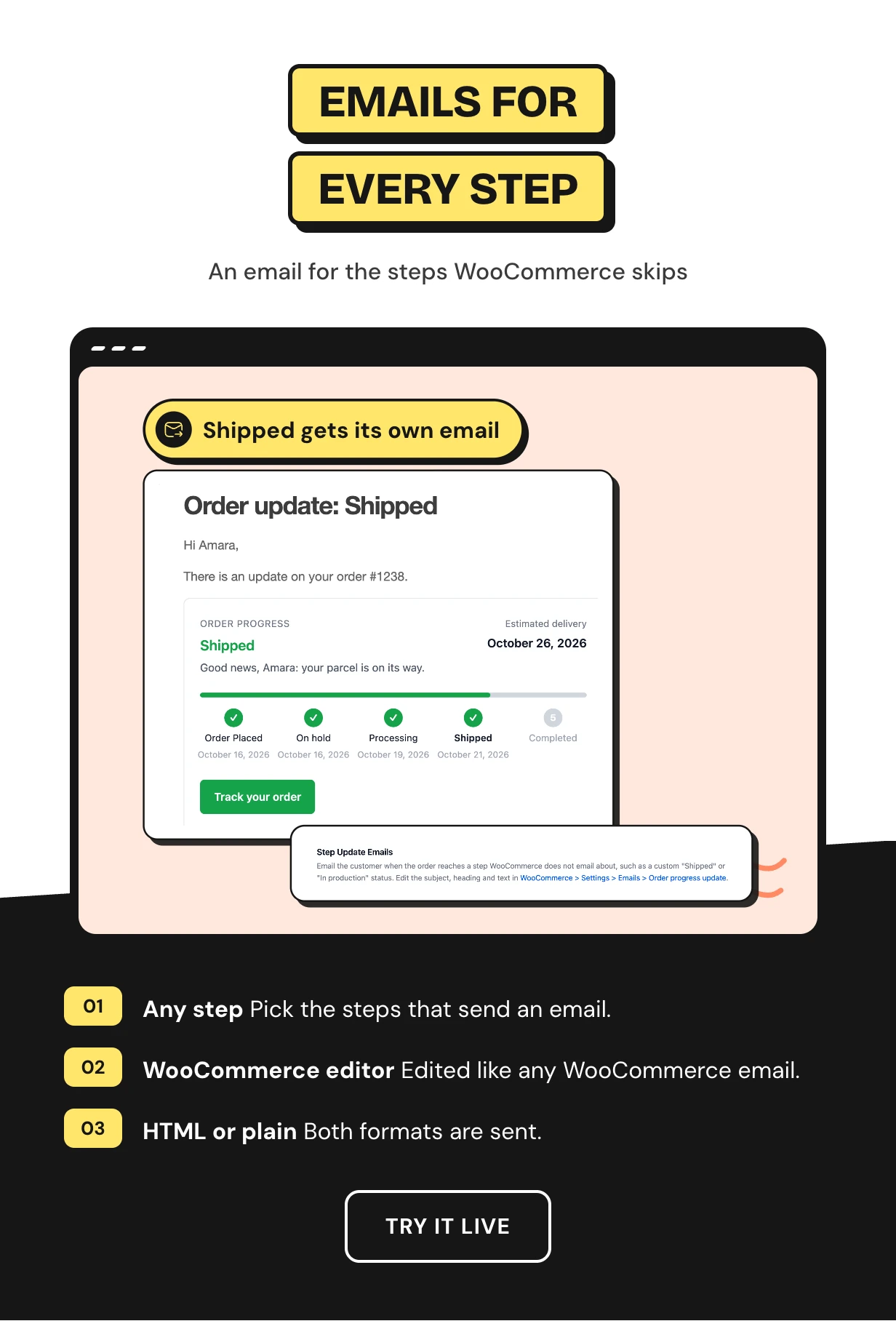
WooCommerce sends nothing when an order moves to a custom status like Shipped. Pick those steps and the plugin sends an Order progress update email.
Edit the subject, heading and text in WooCommerce email settings. The email carries the bar and the order details.
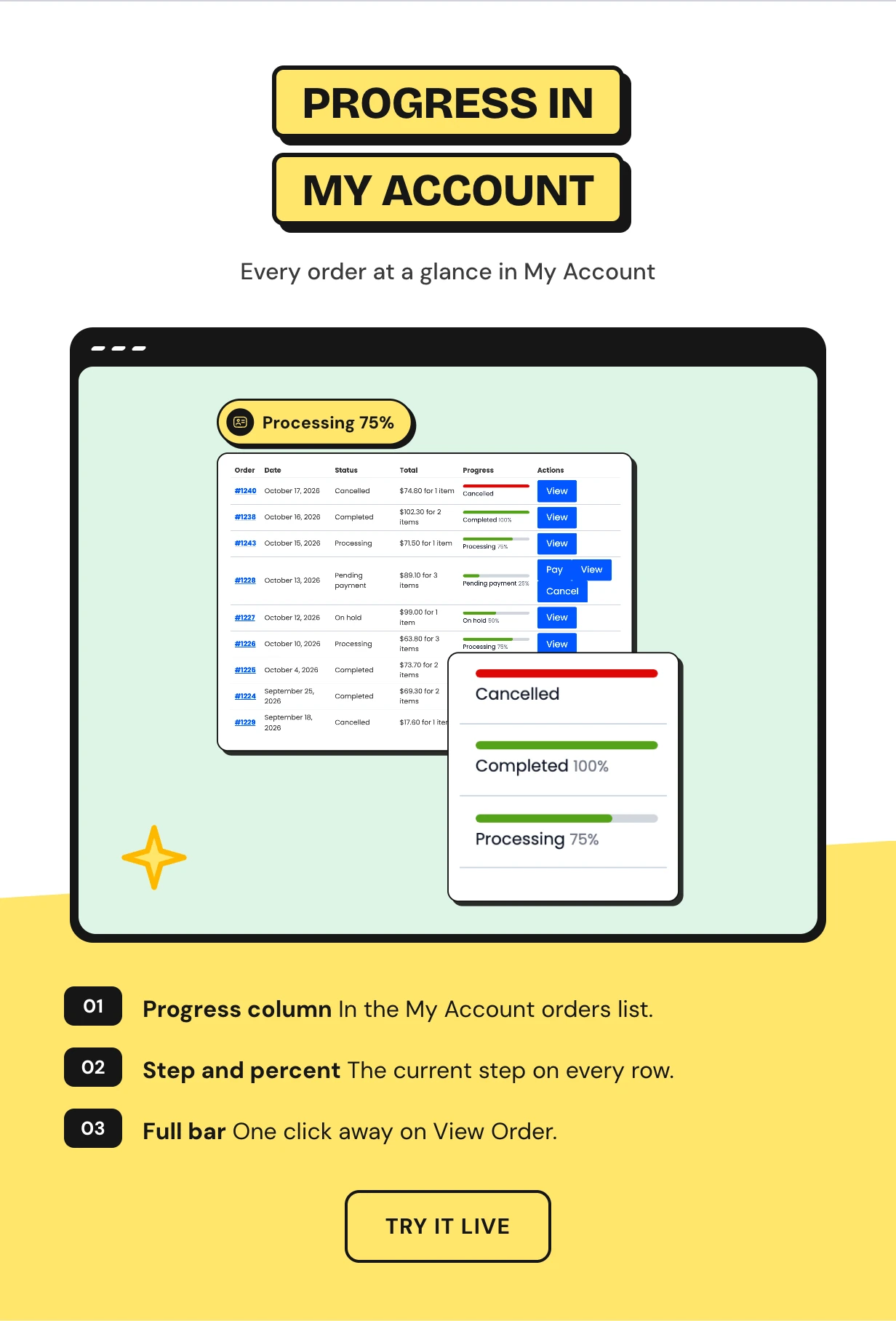
A track order column in My Account orders
A Progress column joins the My Account orders list. Each row shows a small track, the current step and the percentage done.
Regular customers see all their orders at a glance and open any one for the full bar.
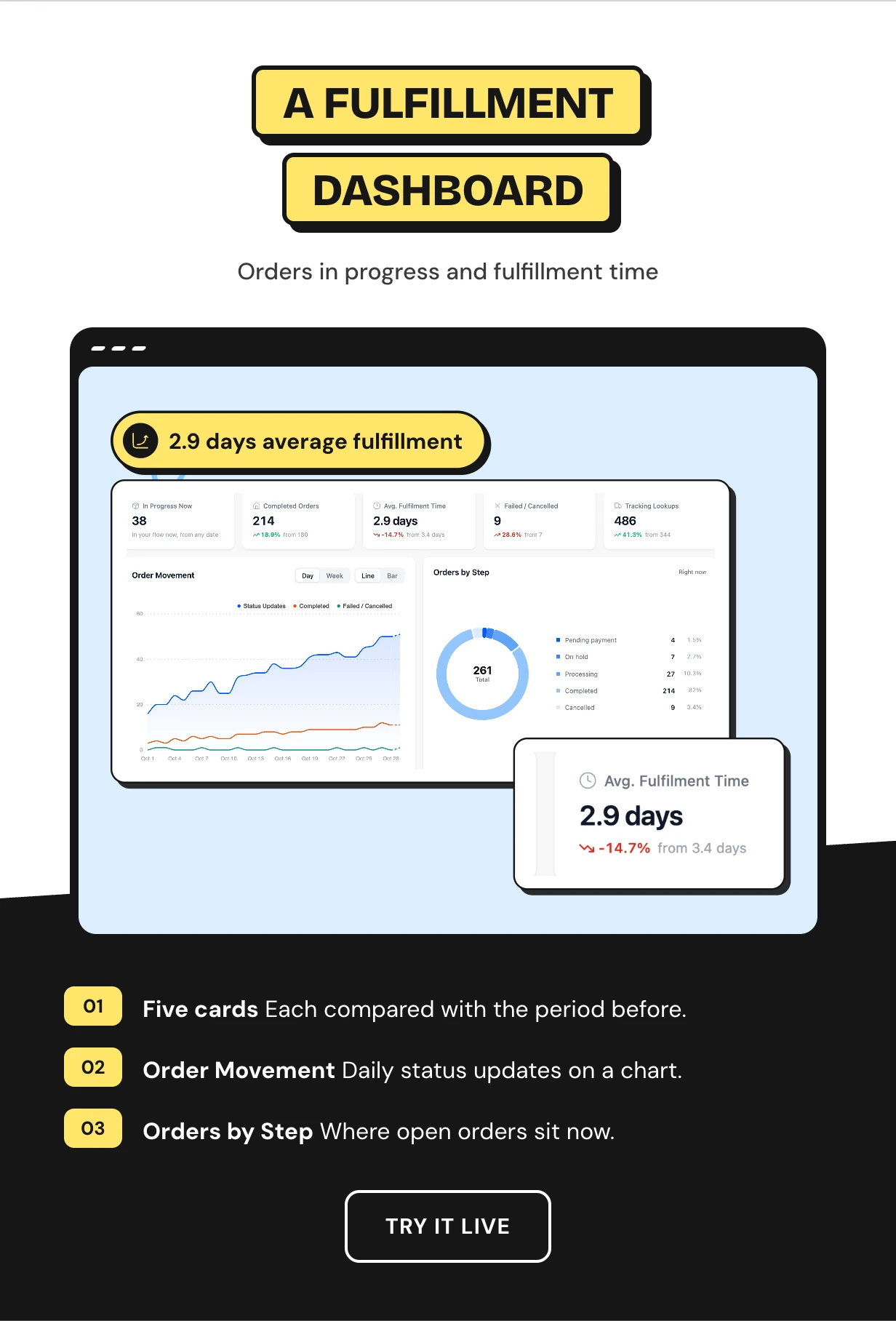
An order tracking dashboard for fulfillment
See orders in progress, completed orders, average fulfillment time, failed orders and tracking lookups for any date range.
An Order Movement chart shows daily status updates. Orders by Step shows where your open orders sit right now.
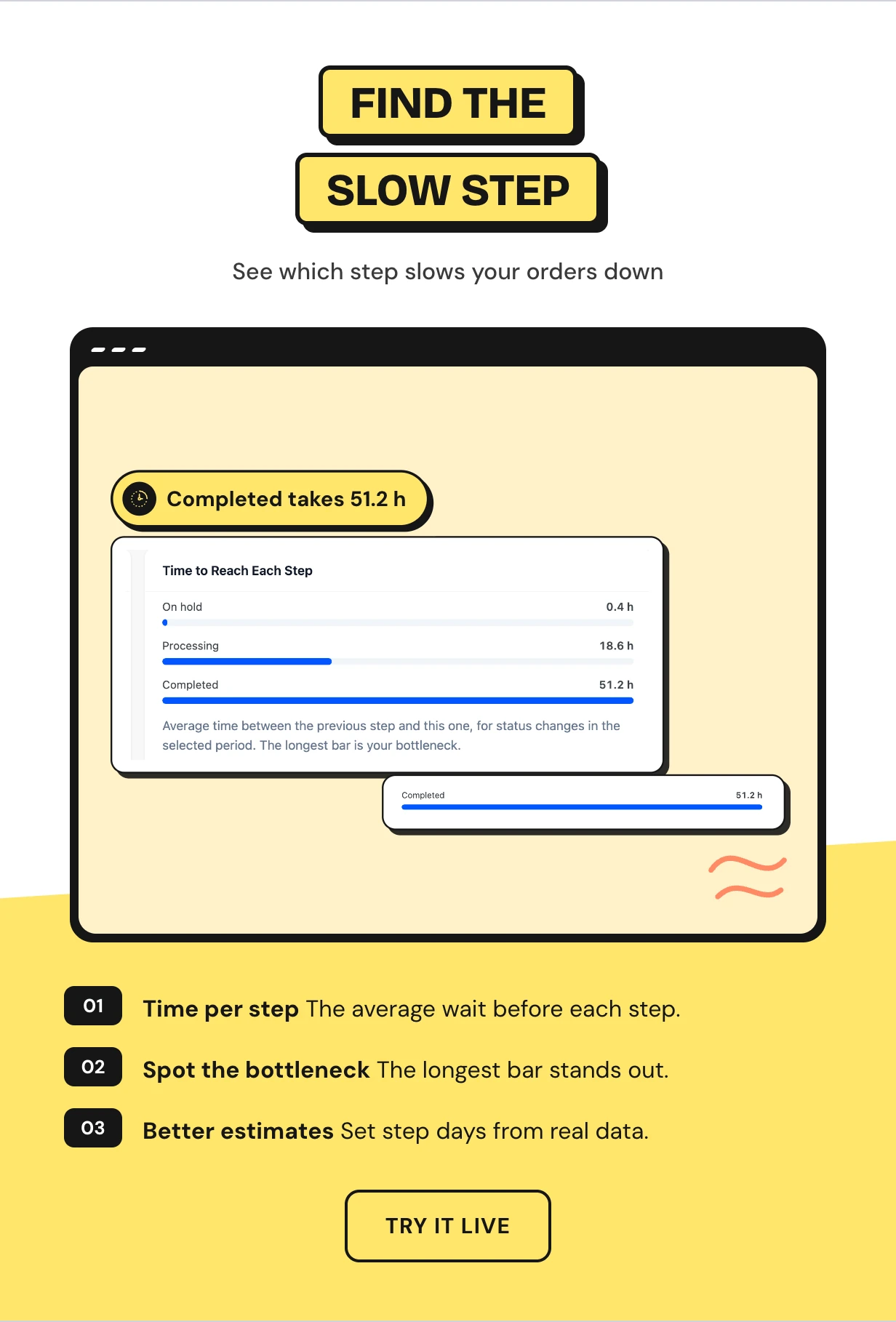
Find the order status step that slows you down
Time to Reach Each Step shows the average wait before every step. The longest bar is your bottleneck.
Use it to set honest step days for the delivery estimate, or to fix the part of fulfillment that needs more hands.
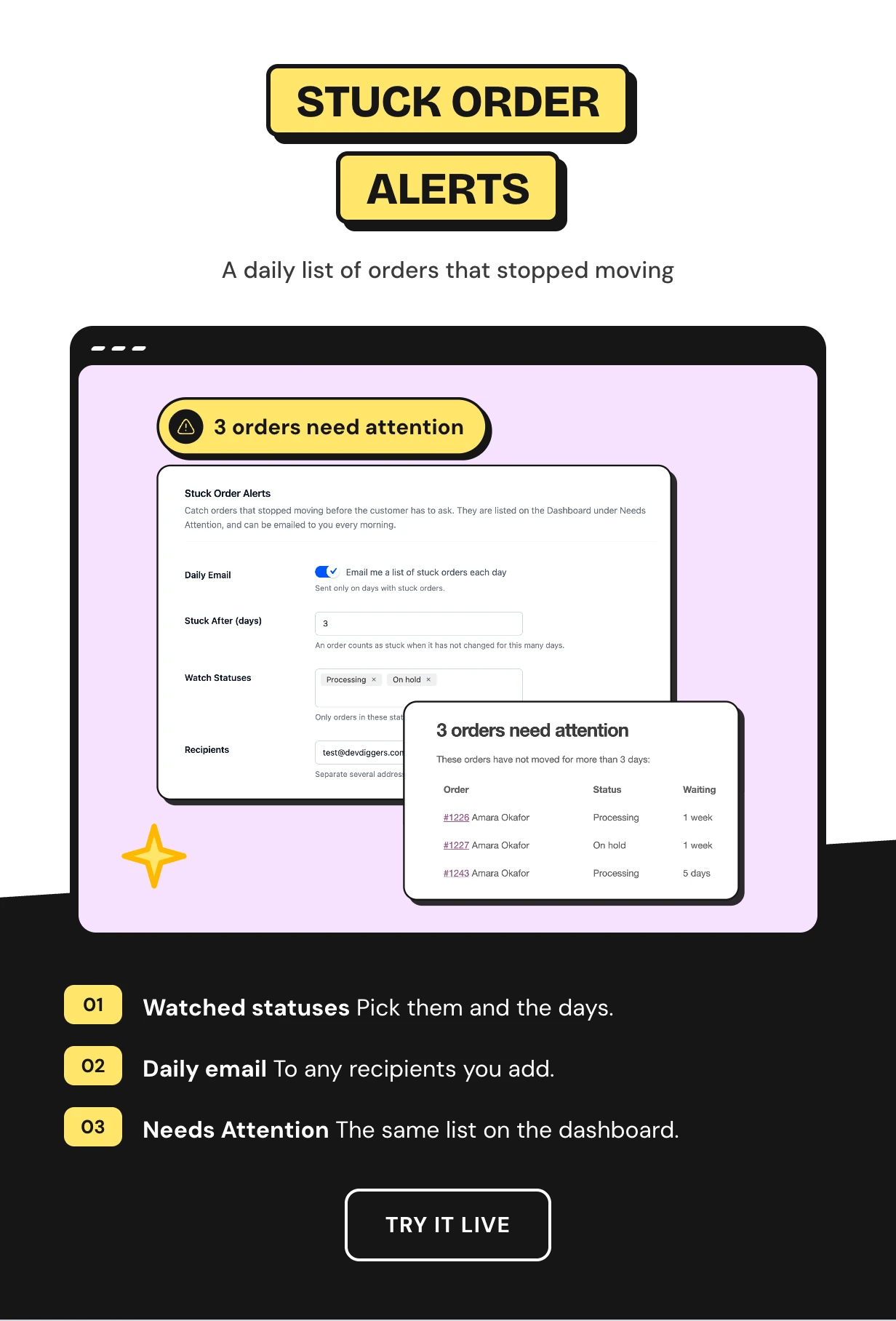
Stuck order alerts before customers ask where is my order
Choose the statuses to watch and after how many days an order counts as stuck. Those orders show under Needs Attention on the dashboard.
Turn on the daily email and the list lands in your inbox each morning. No stuck orders means no email.
Full feature list
Where customers see it
- Thank-you page and My Account View Order
- Six positions on each page
- Progress column in My Account orders
- Track Order page for guests and customers
- Customer emails you pick
Steps and status flow
- Any default or custom order status as a step
- Drag to reorder steps
- Name, icon, message and days per step
- {first_name} and {order_number} placeholders
- Failed, cancelled and refunded orders shown in your failed color
Design
- Stepper, Timeline, Segments, Pills and Minimal layouts
- Success, failed and upcoming colors
- Show or hide icons, dates, message and percent
- Right-to-left and reduced motion support
Delivery dates
- Estimated delivery date from step days
- Skip Saturdays and Sundays
- Manual delivery date on any order
- Your own estimate and delivered labels
Emails and alerts
- Progress bar above or below the order details
- Track your order button
- Order progress update email for custom steps
- Daily stuck order email to any recipients
Dashboard and order screen
- Orders in progress, completed, failed and lookups
- Average fulfillment time
- Order Movement and Orders by Step charts
- Time to Reach Each Step and Needs Attention
- Order Progress box on the order edit screen
Placement and setup
- [ddwcopb_track_order] and [ddwcopb_progress] shortcodes
- Track Order and Order Progress blocks
- Setup wizard on activation
- HPOS and page caching support
What you need to add an order progress bar
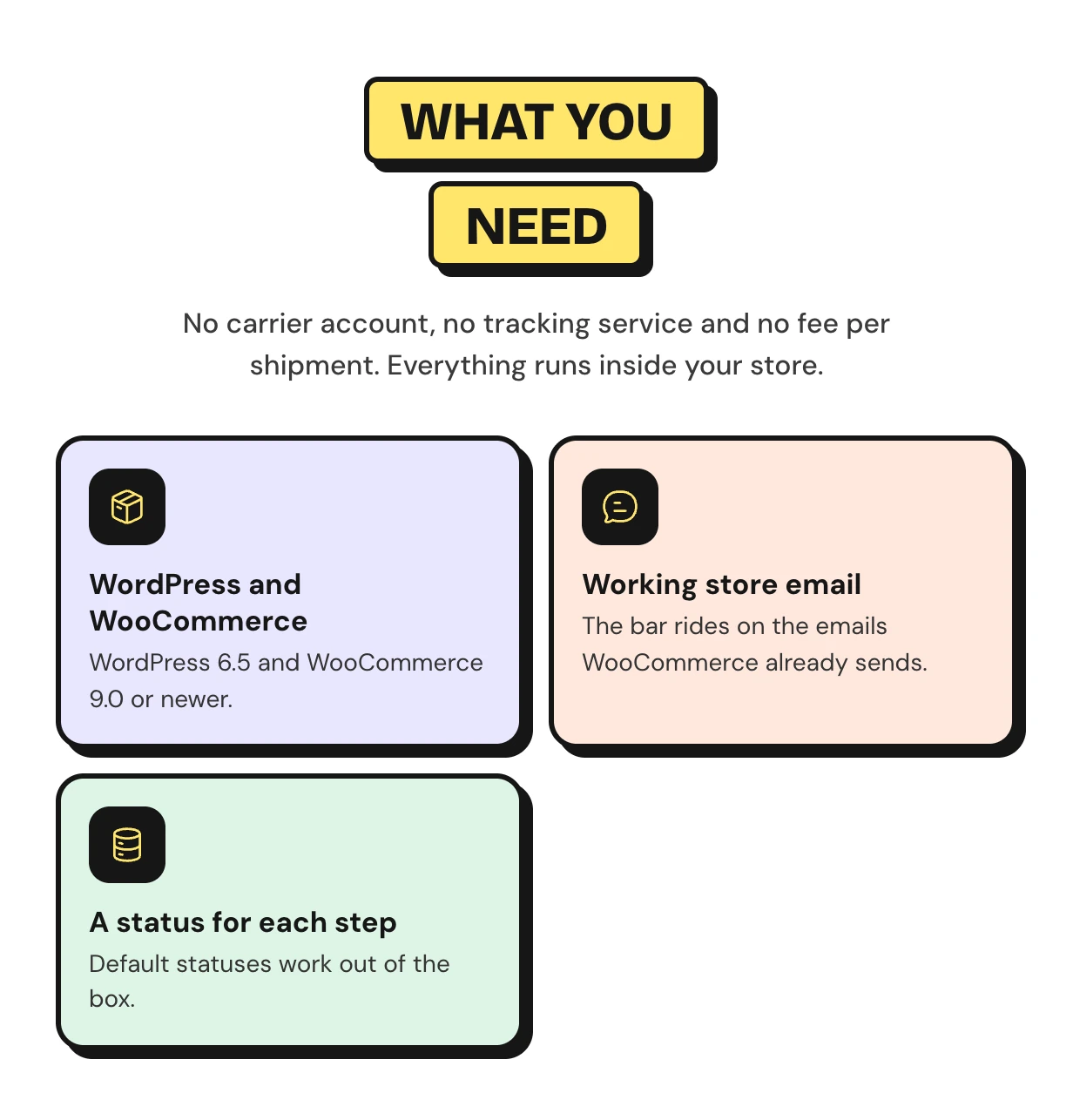
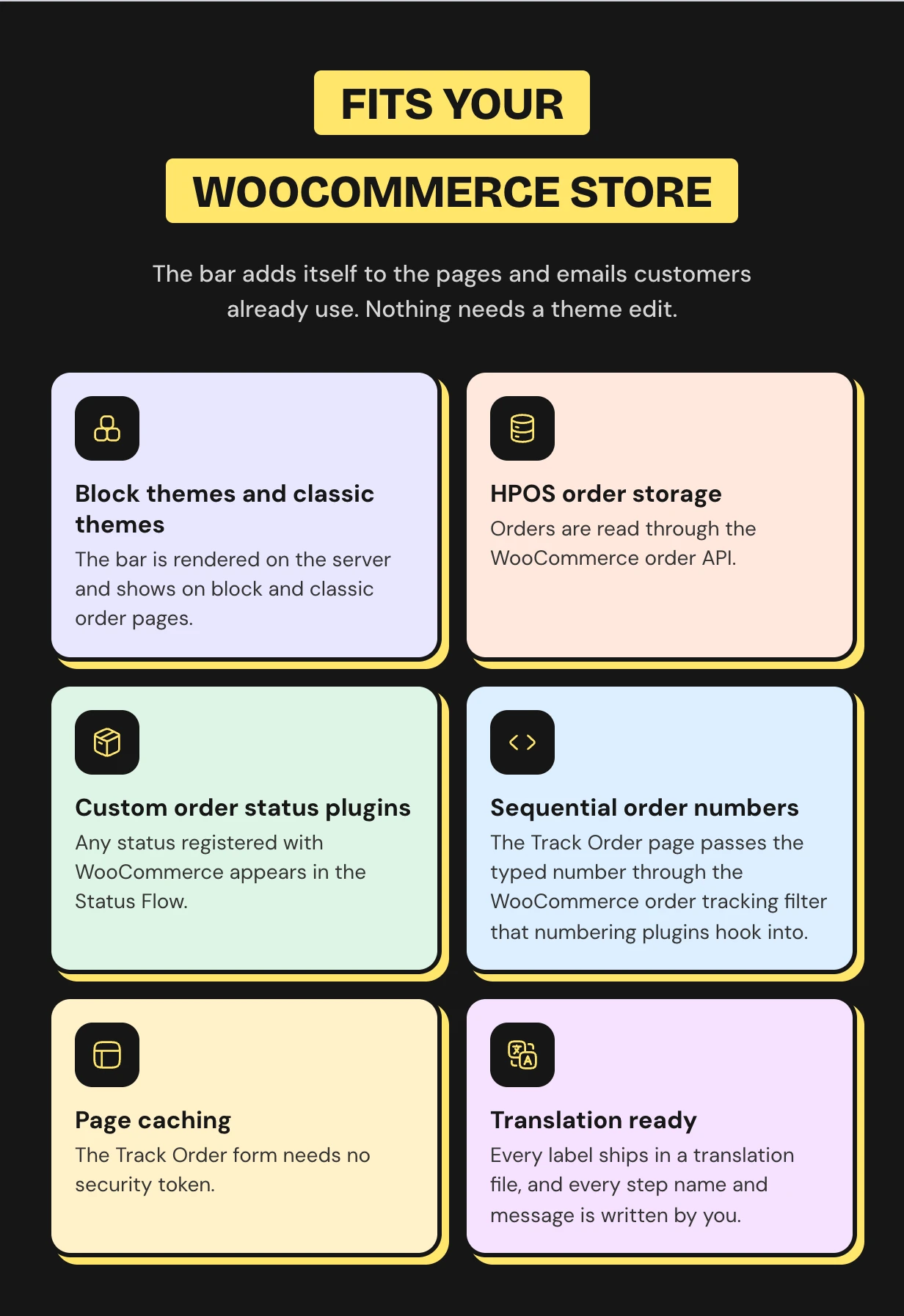
Works with the WooCommerce store you already run
The bar is rendered on the server and works on block and classic themes. HPOS, page caching and custom status plugins are all covered.
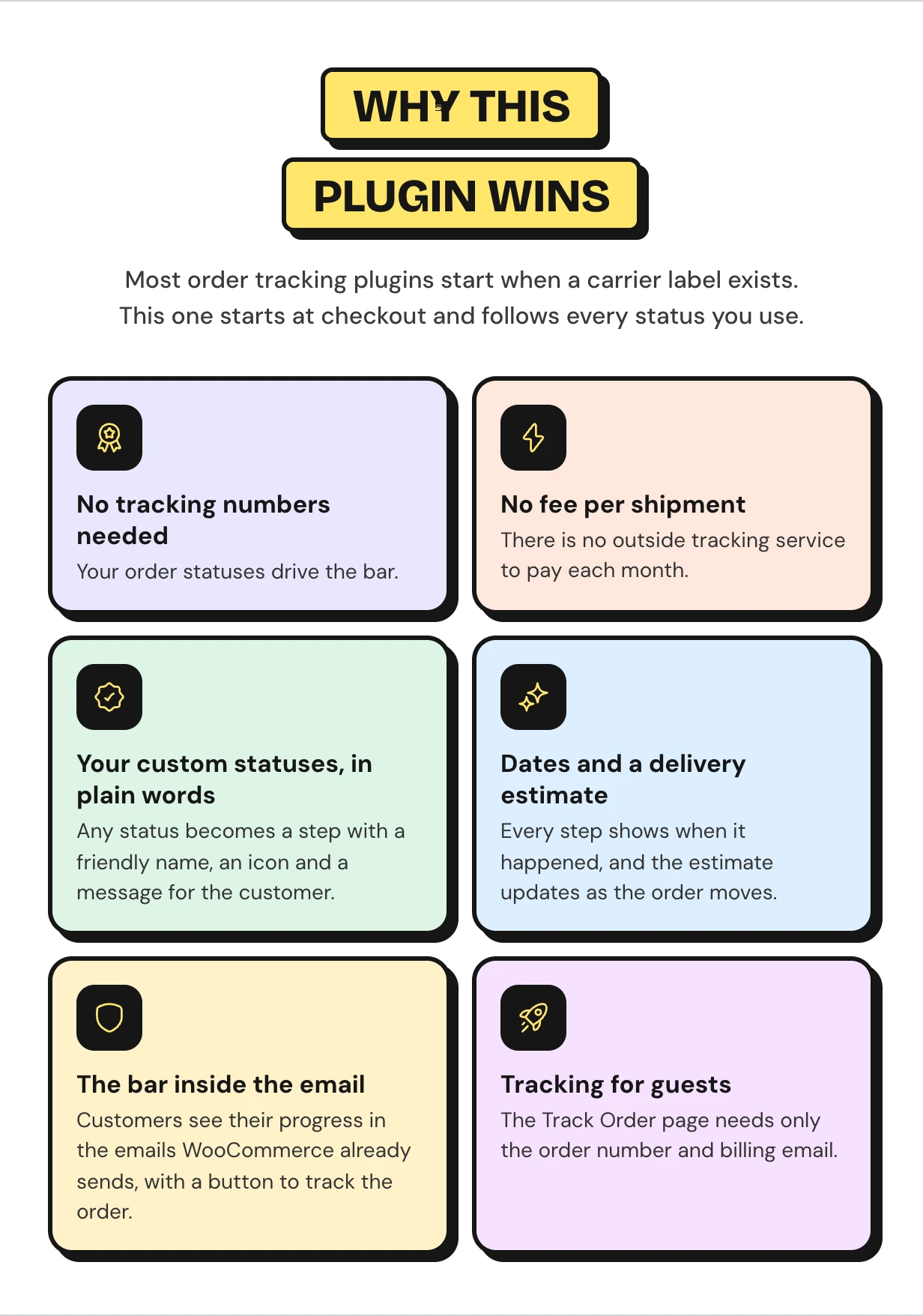
Why this order tracking plugin for WooCommerce is different
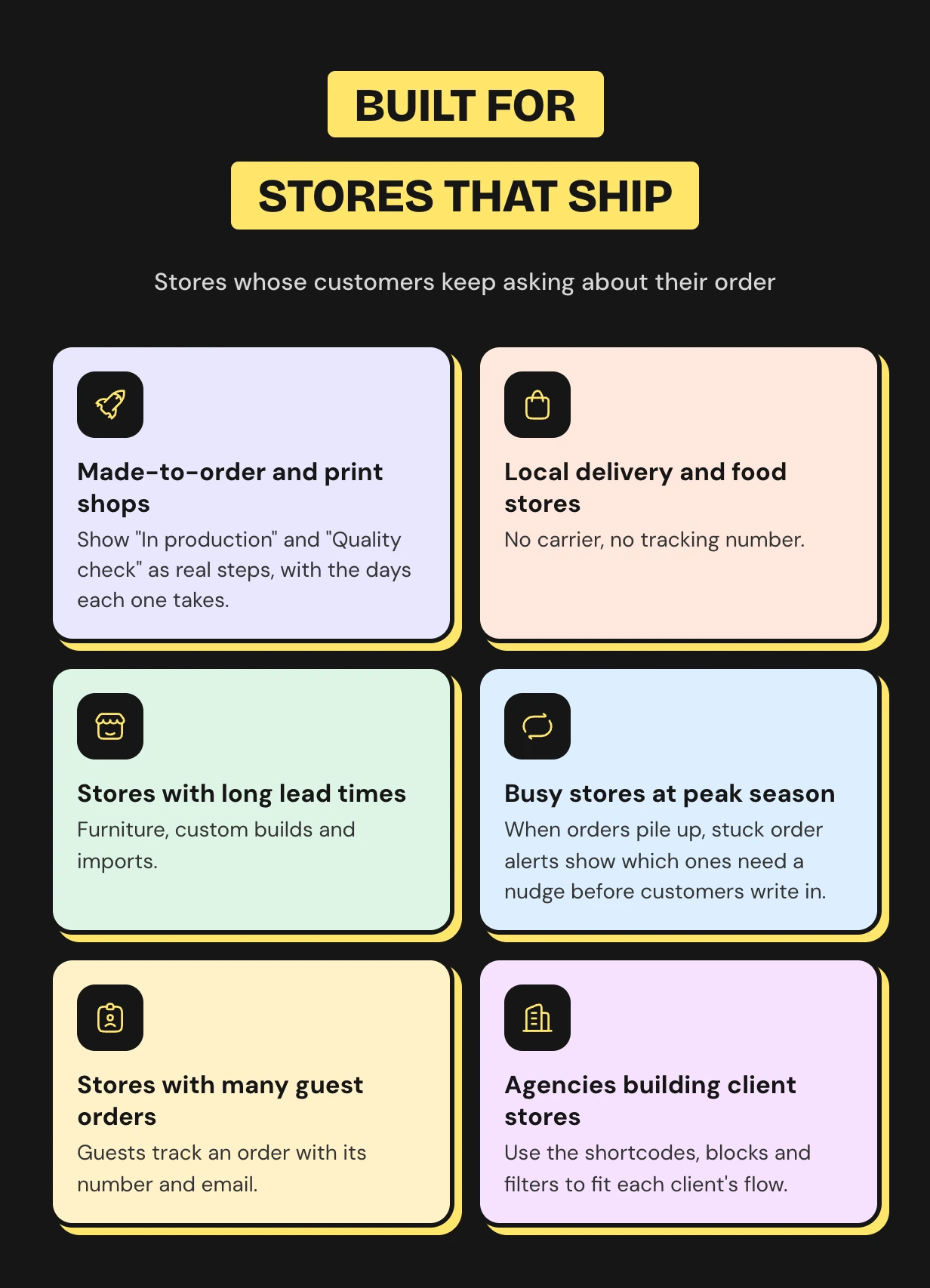
Who the order progress bar is for
What buyers say
WooCommerce order tracking questions
How do I add order tracking in WooCommerce?
Install this plugin and finish the setup wizard. The bar then shows on order pages, in emails and on a Track Order page.
Does it need tracking numbers or a shipping carrier?
No. The bar follows the WooCommerce order status you set. It does not connect to carriers or show carrier scans.
Can guests track their orders?
Yes. The Track Order page asks for the order number and the billing email. The button in guest emails opens it with the number filled in.
Does it work with a custom order status plugin?
Yes. Every status registered with WooCommerce shows up in the Status Flow. Give it a friendly name, an icon and a message.
How is the estimated delivery date worked out?
You set the days each step usually takes. The plugin adds up the days still ahead and can skip weekends.
Is there a WooCommerce order tracking shortcode?
Yes. Use [ddwcopb_track_order] for the tracking form and [ddwcopb_progress] for one order. Matching blocks are included too.
Will customers get two emails for one step?
Only if you pick a status WooCommerce already emails about. Use step update emails for custom statuses such as Shipped.
Does it work with HPOS and the block checkout?
Yes. It declares support for HPOS order storage and the Cart and Checkout blocks. The bar renders on block and classic themes.
Will it slow down my store?
No. Its styles and scripts load only on order pages and pages with its shortcode or block. Status history lives in its own indexed table.
Support and custom work
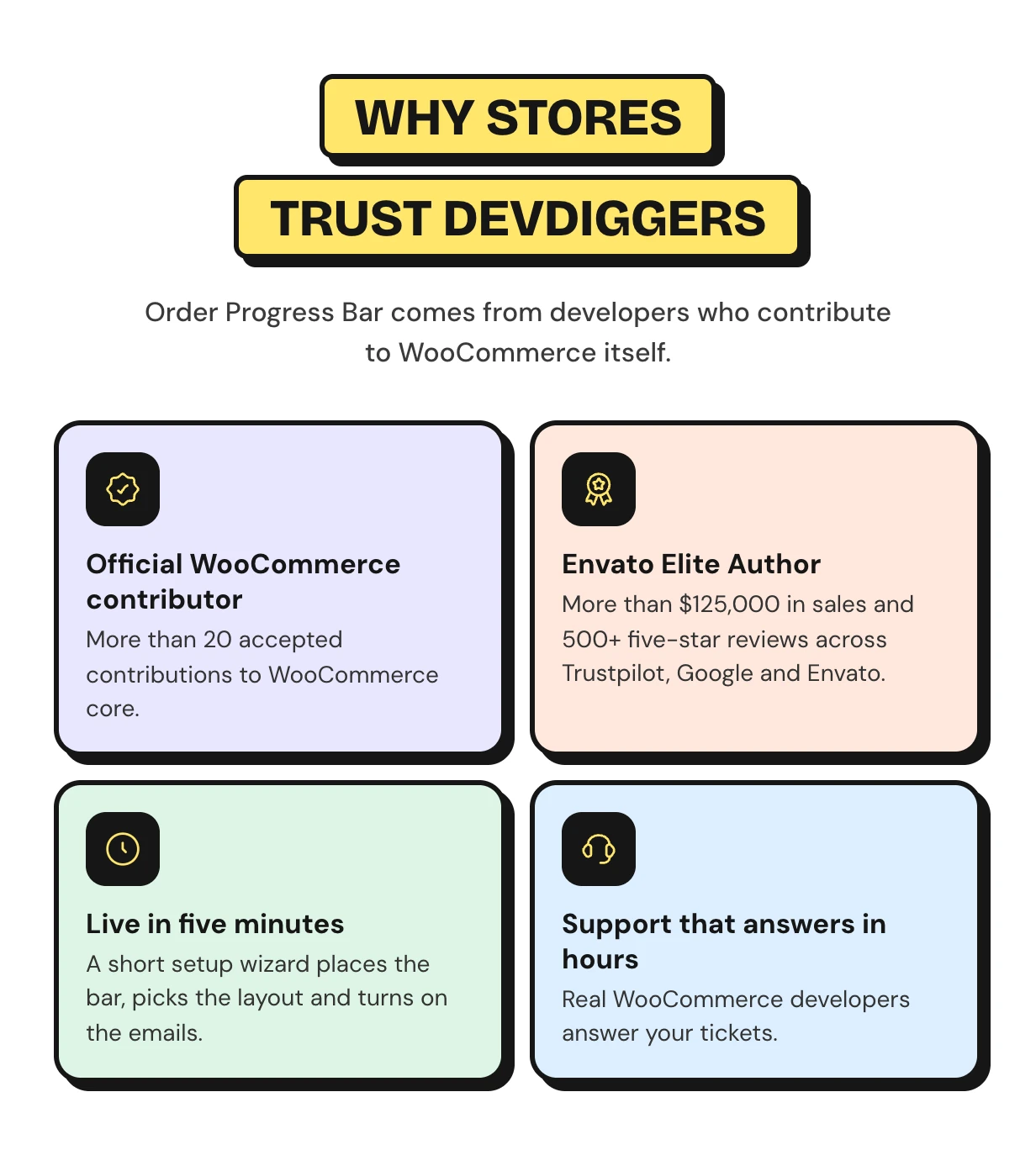
Support comes from the developers who wrote the code, usually within hours. Start with the Order Progress Bar documentation or contact our team. See every feature on the WooCommerce order progress bar plugin page.
Need a carrier sync or SMS updates for your own store? Our WooCommerce development services team builds custom order tracking features for you.
Requirements
- WordPress 6.5 or newer
- WooCommerce 9.0 or newer
Changelog
v 1.0.3
Added compatibility with the latest WordPress and WooCommerce.
Added WooCommerce HPOS compatibility.
Resolved security issues.
v 1.0.2
Added compatibility with the latest WordPress and WooCommerce.
Resolved security issues.
v 1.0.1
Added compatibility with the latest WordPress and WooCommerce.
Updated license API.
Resolved security issues.
v 1.0.0
Initial Release
Download Now
LIVE PREVIEWDownload Now


