
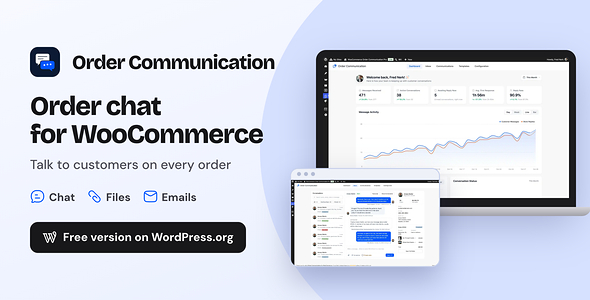
Order Communication is a WooCommerce order chat plugin that gives every order its own private conversation. Customers write from the order page in My Account. Your team replies from one inbox or the order screen.
WooCommerce customer order notes only go one way. The customer reads them by email and has no way to answer on the order. Here every question, photo and reply stays on the order it is about.
It works as WooCommerce private messaging, a light WooCommerce help desk and an order support ticket for each purchase. Saved replies, automatic replies and response time reports come in the same download.
Try it free first: Order Communication for WooCommerce on devdiggers.com with no time limit
Every plan and the latest features: Order Communication plugin page
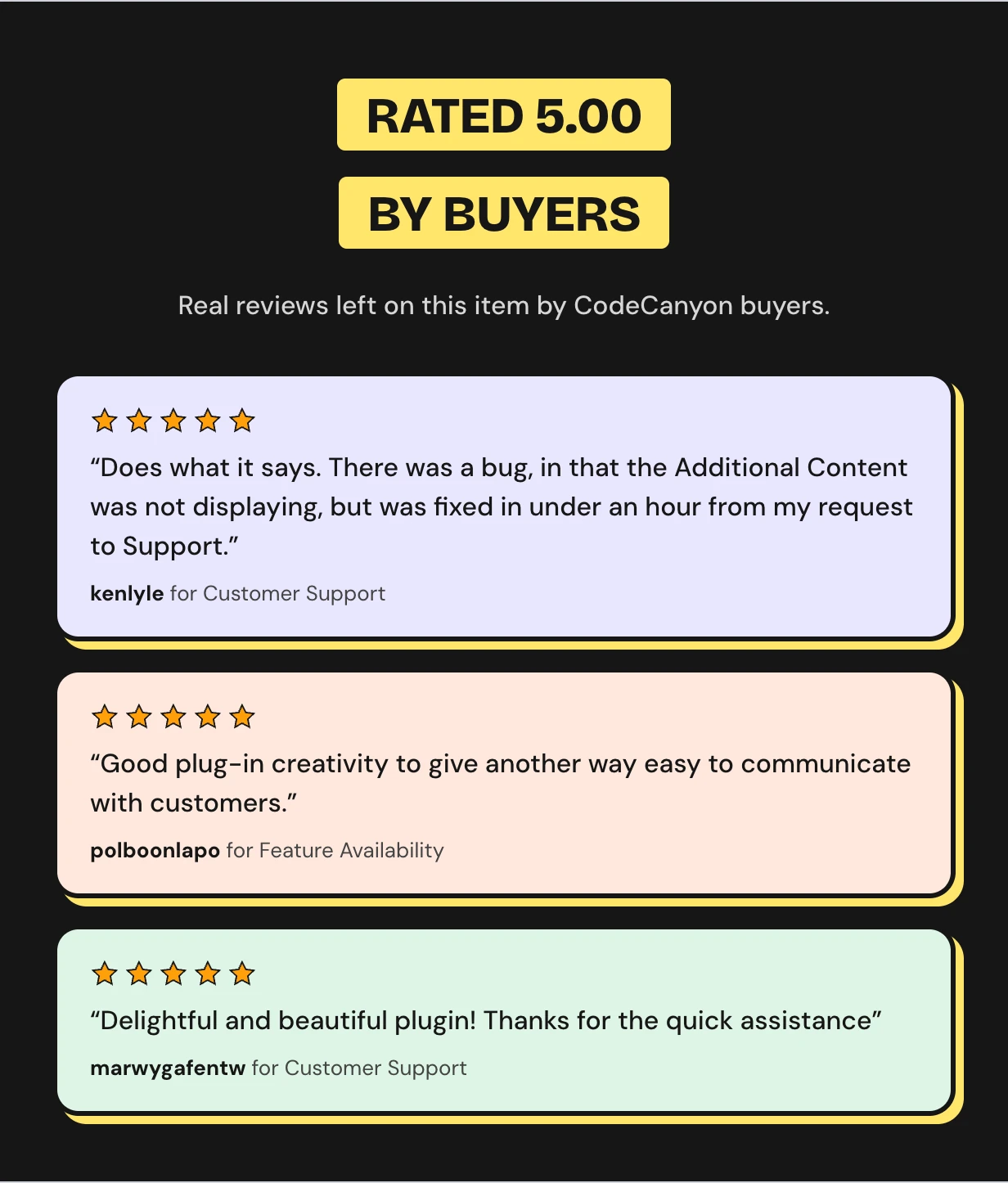
Rated 5.00 out of 5 by CodeCanyon buyers





Start with the free WooCommerce order chat plugin
Want to try it first? Install Order Communication for WooCommerce from devdiggers.com. Every order gets a two-way chat with the Inbox, seen ticks and email alerts, with no cap on messages.
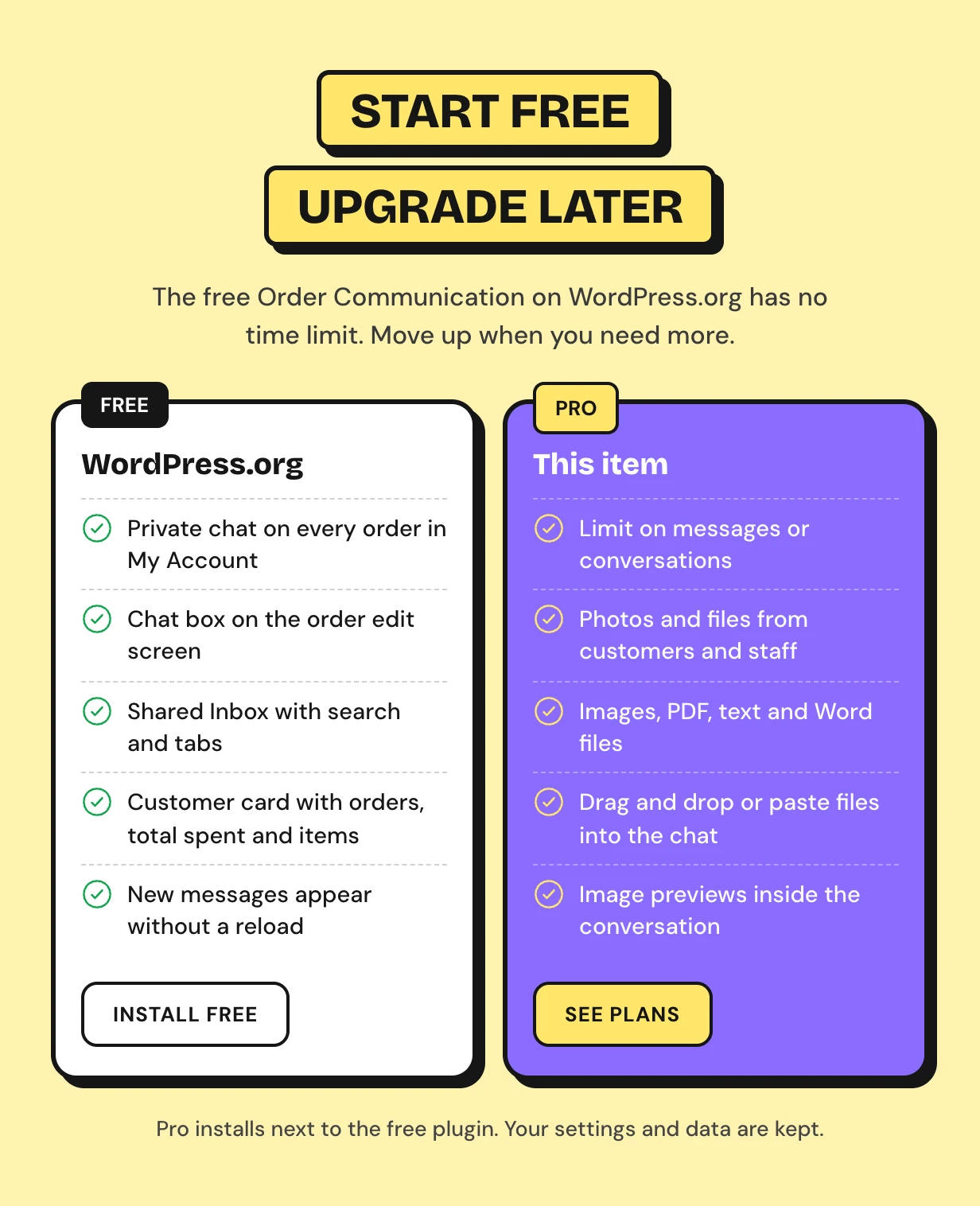
Pro is for stores where answering customers takes real time every day. It adds photos and files, saved replies, private notes, automatic replies, business hours and response time reports. Pro runs on top of the free plugin and keeps every message and setting.
Order questions end up in an inbox that knows nothing about the order
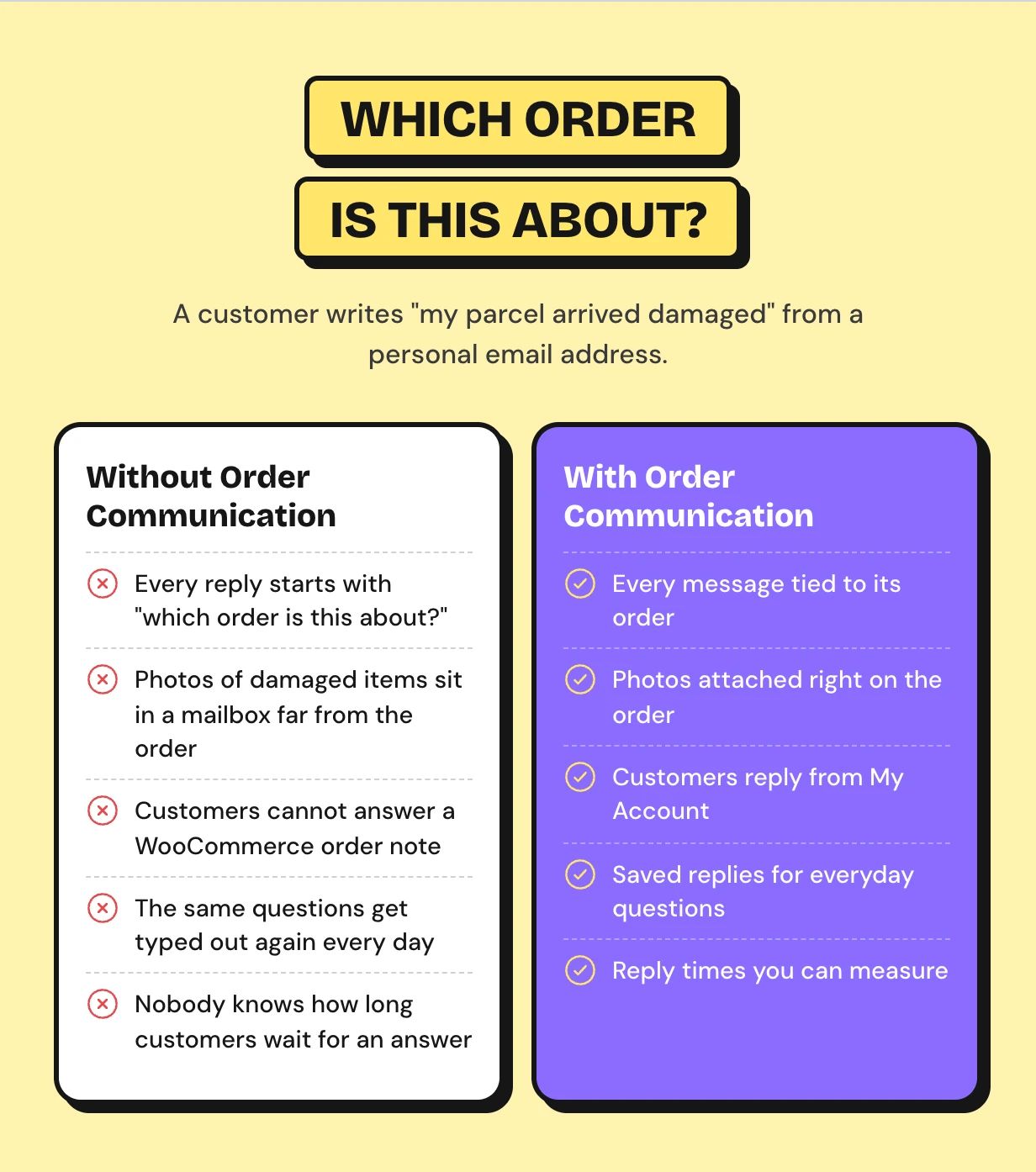
A customer writes that a parcel arrived damaged from a personal email address. Someone searches WooCommerce for the order and asks for a photo. The thread splits in two.
A week later a colleague picks up the same customer and starts from zero. Nothing about the conversation is saved where the order lives.
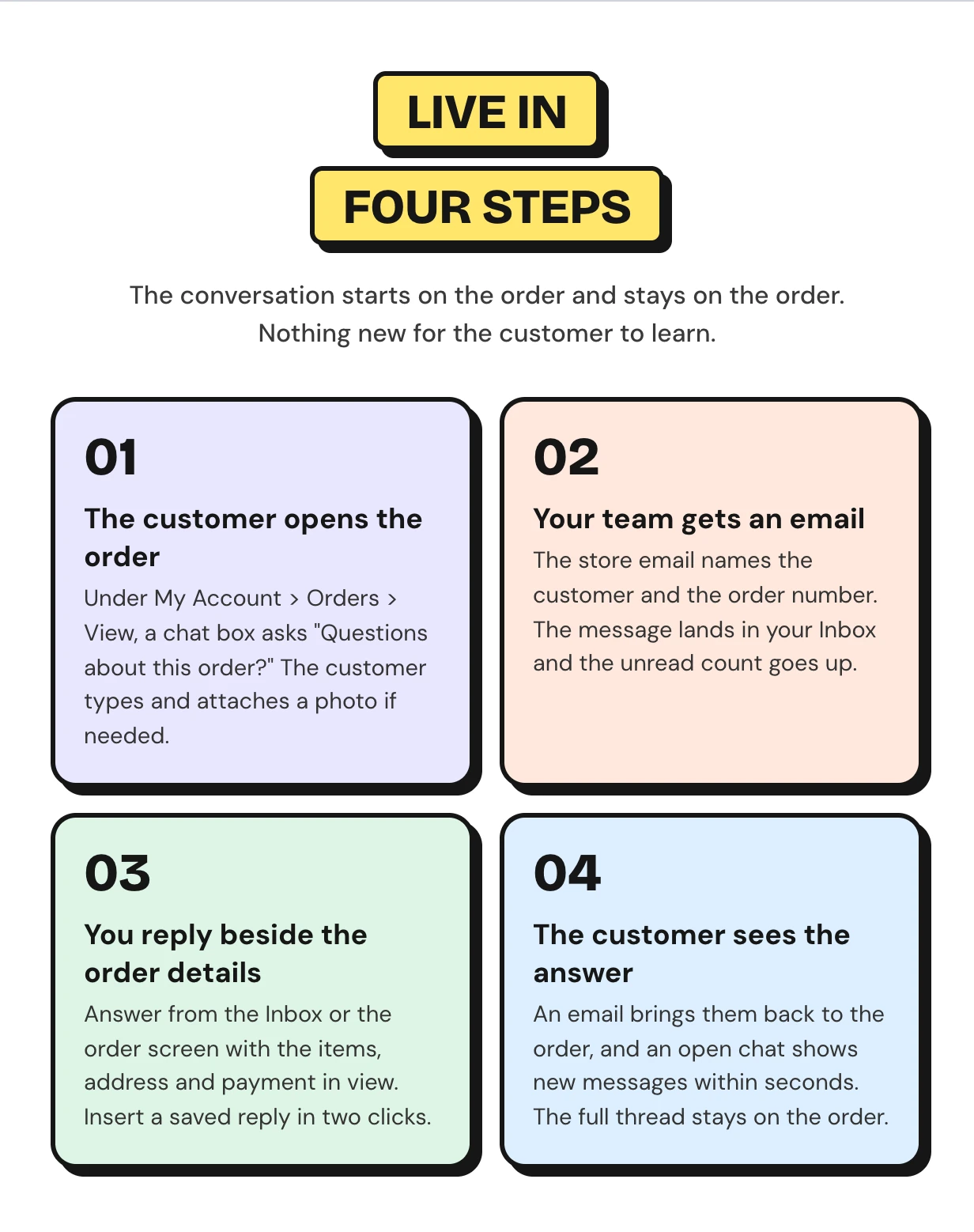
How order communication works in WooCommerce
The conversation starts on the order and stays on the order. The setup wizard turns it on in a few steps.
WooCommerce order chat features
Every feature below ships in this one download. Each customer and admin conversation stays tied to the order it is about.
A private WooCommerce order chat on every order
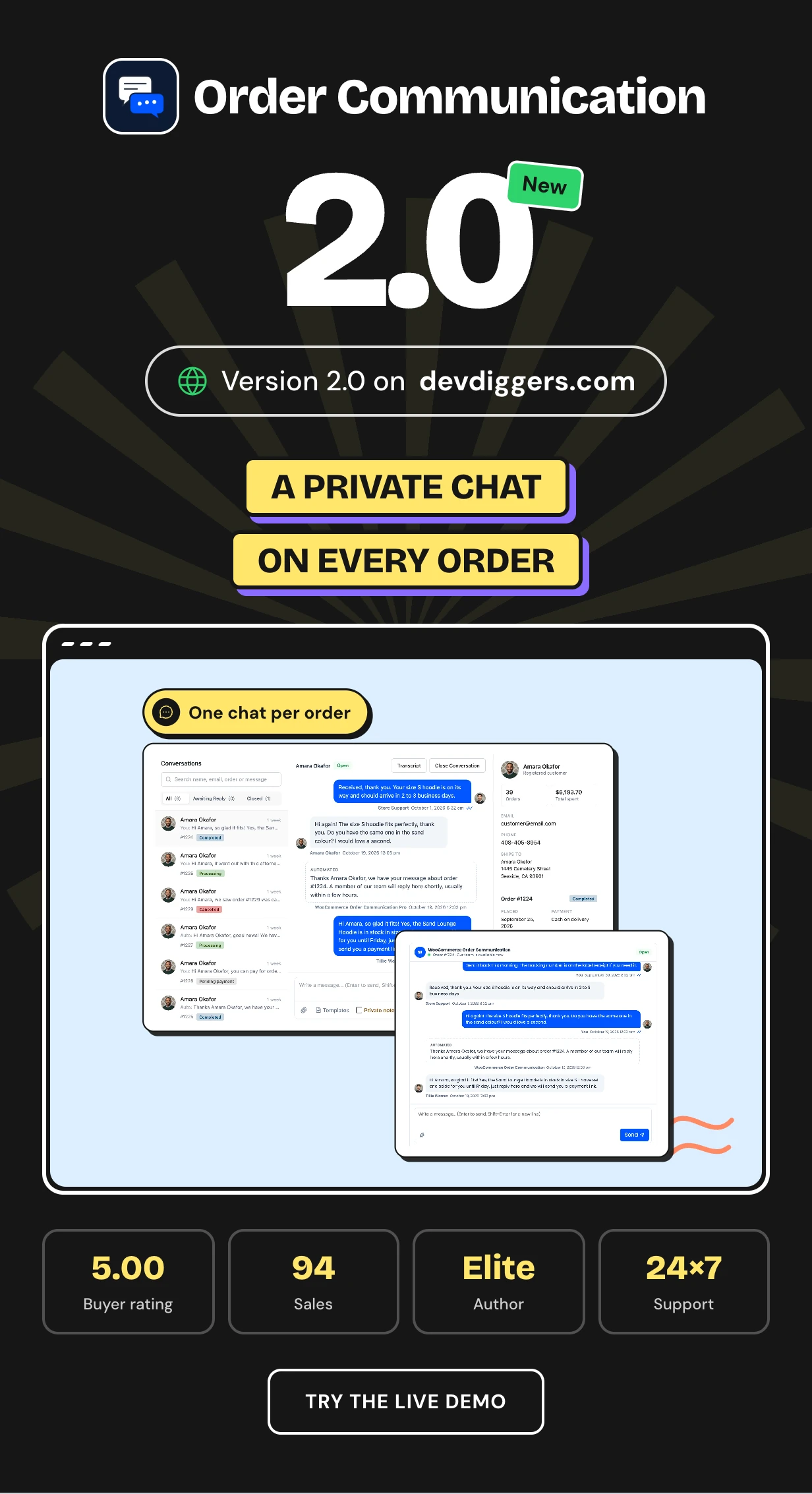
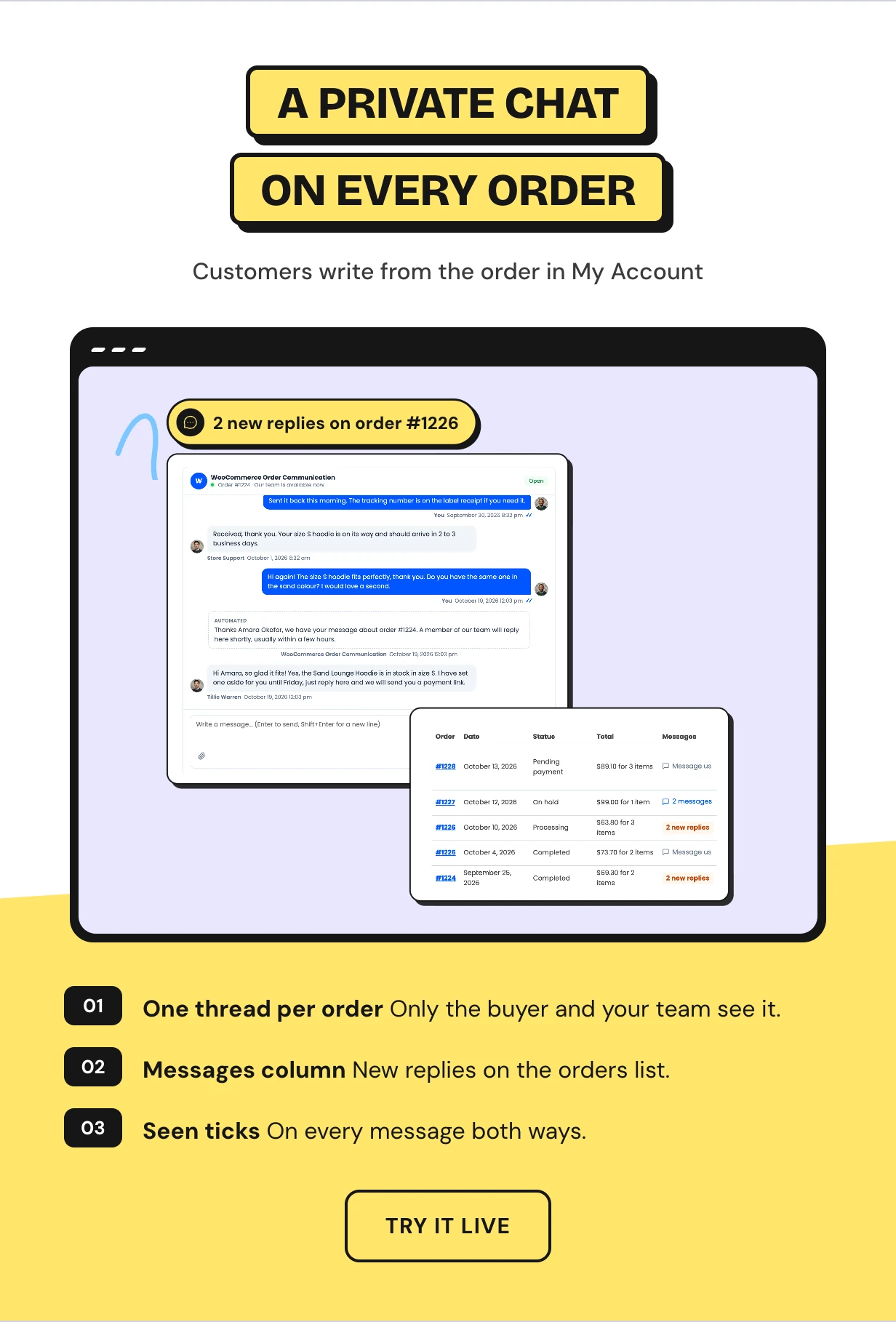
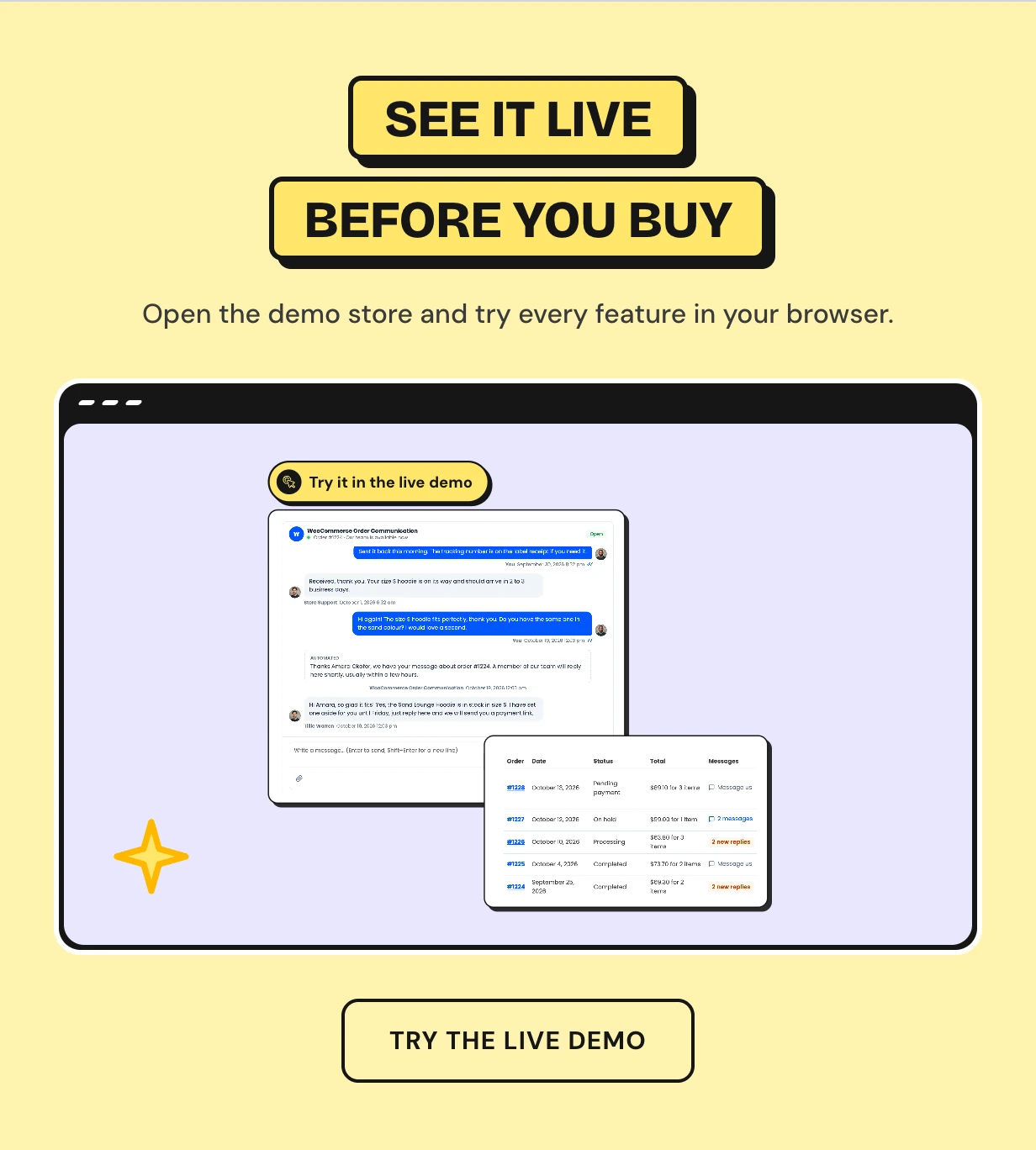
Each order gets its own message thread under the order details in My Account. Only the customer who placed the order and your team can read it.
The My Account orders list gains a Messages column that shows new replies. Pick the order statuses where chat is allowed.
One inbox for every customer and admin conversation
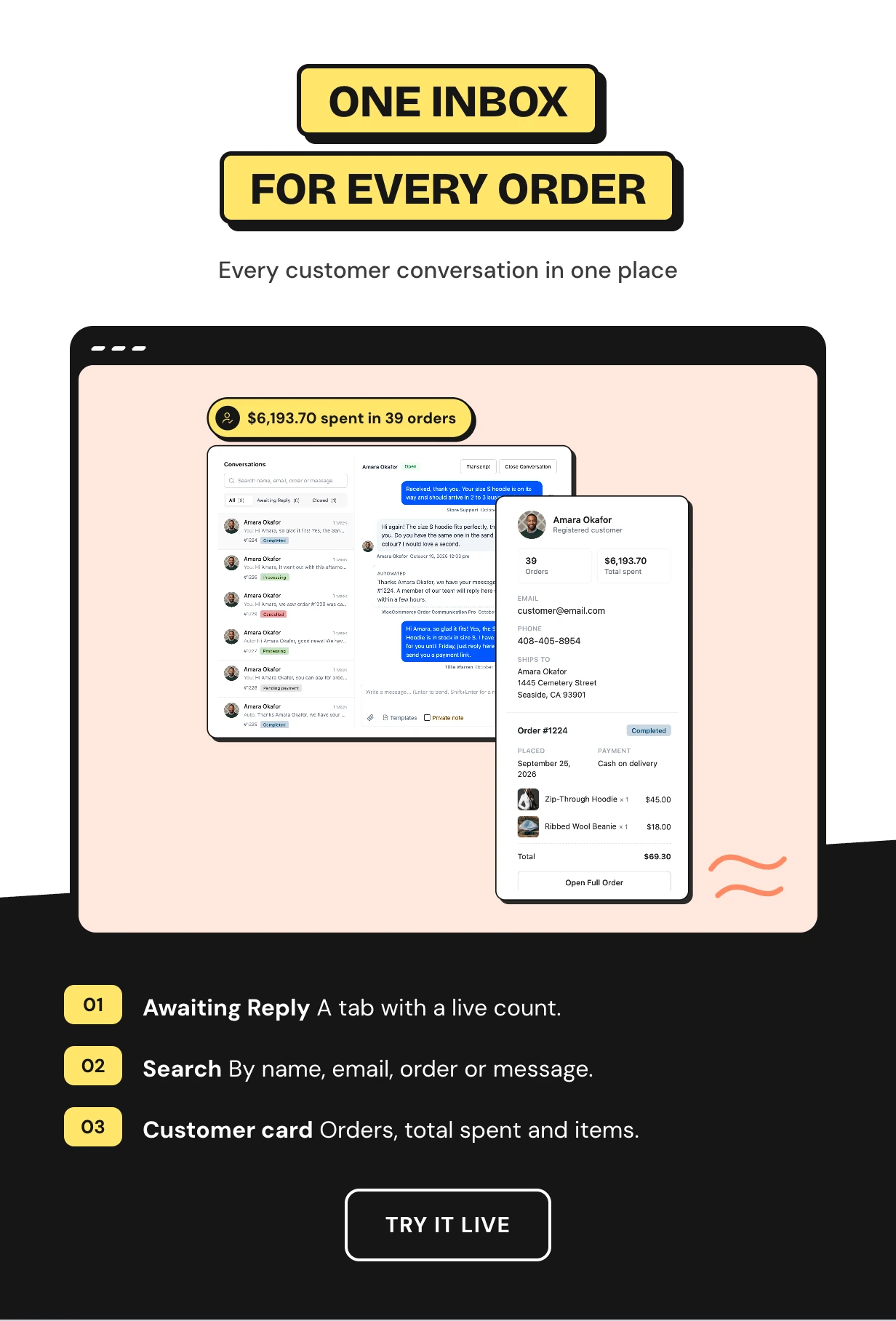
The Inbox lists every order conversation with the newest first. Tabs split them into All, Awaiting Reply and Closed, and search finds a name, order or message.
Beside the chat sits the customer card with orders placed, total spent, address and items. You answer with the whole order in view.
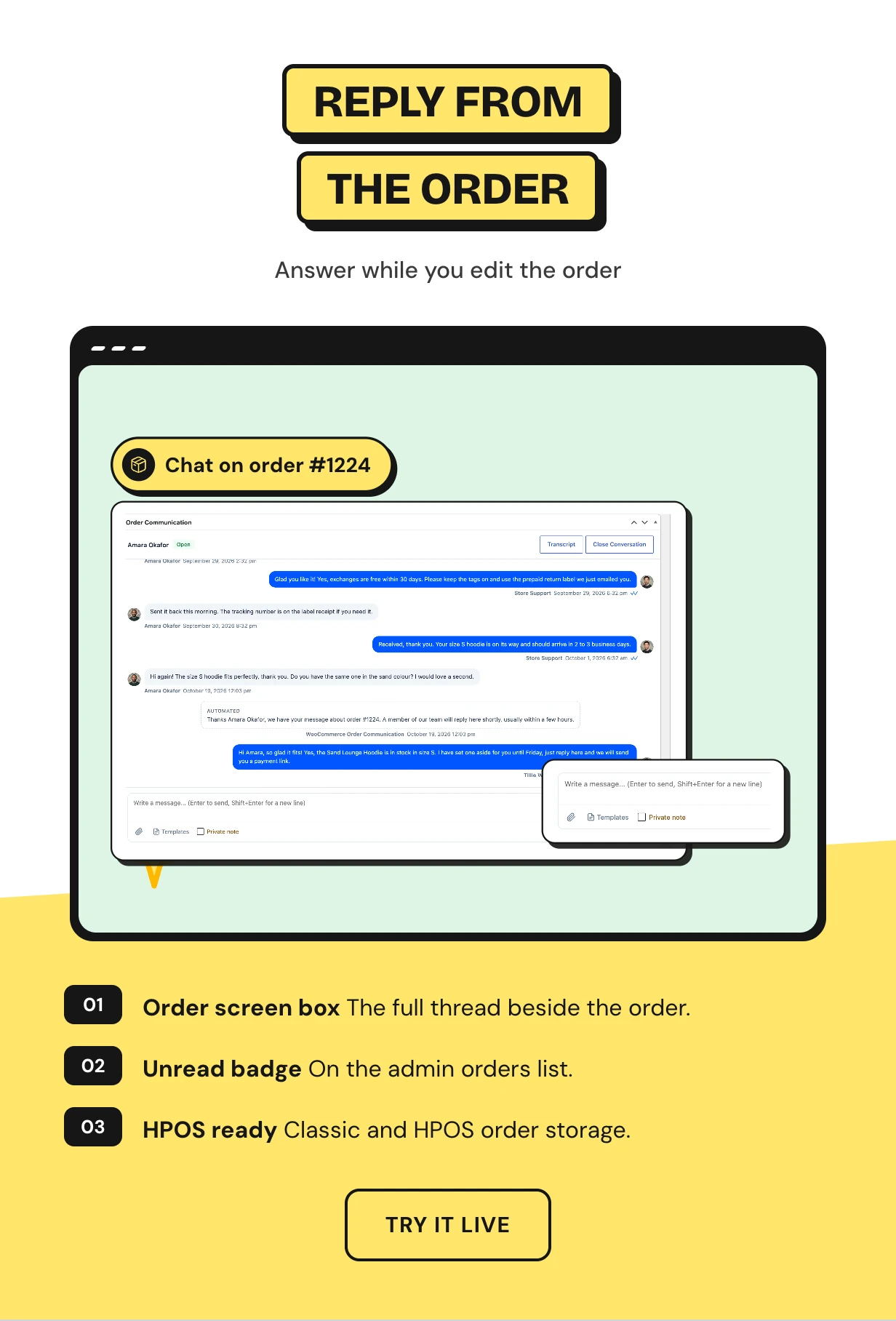
Reply to order messages from the WooCommerce order screen
An Order Communication box sits on the order edit screen. You can answer while you change the status or add tracking.
The WooCommerce orders list gets a Messages column with an unread badge. It works with both order storage types.
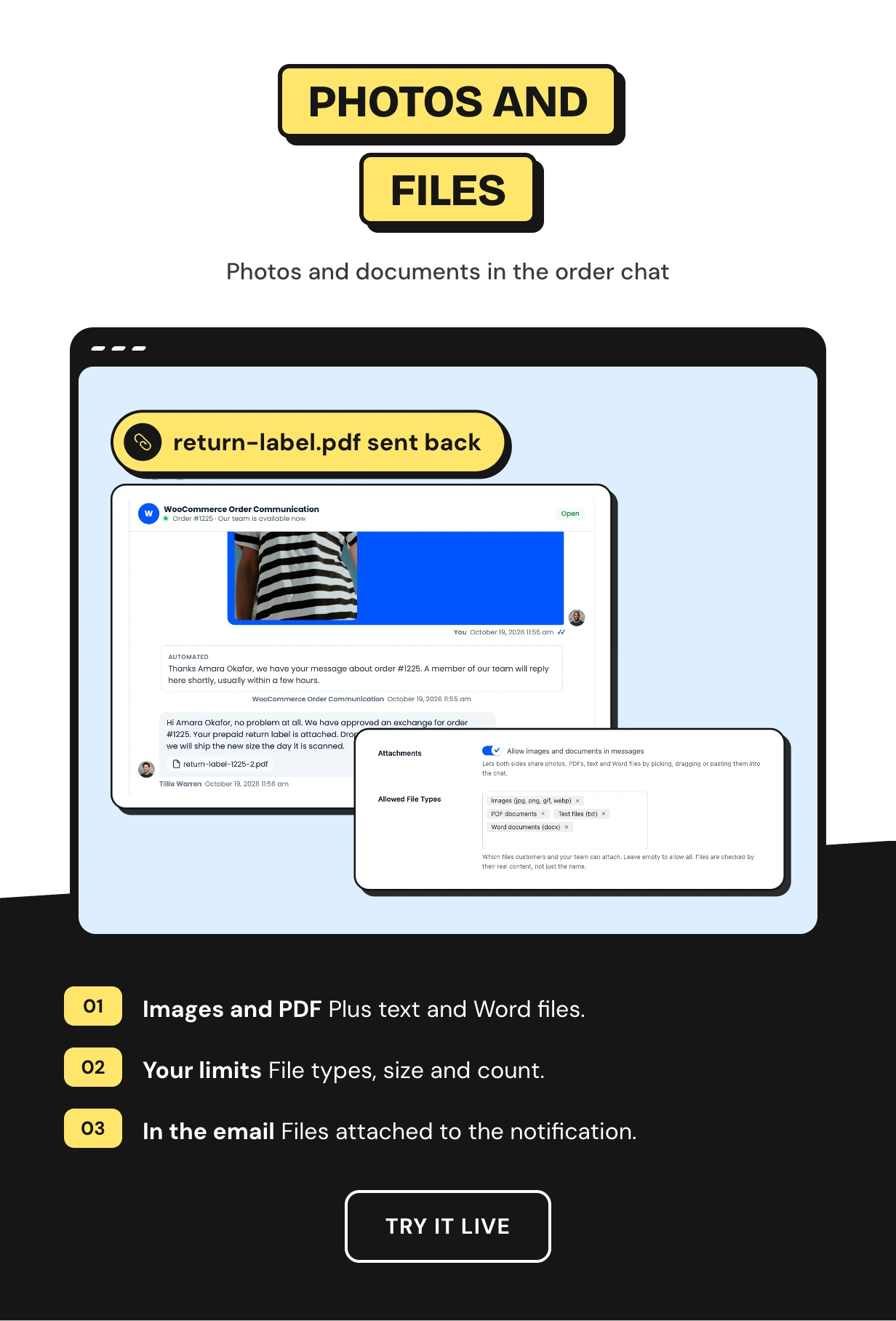
Message attachments on orders for photos and documents
Customers attach a photo of a damaged item, and you send back a return label or an invoice. Pick files, drag them onto the chat or paste them.
You decide the file types, the size limit and how many files fit in one message. Each file is checked by its real content.
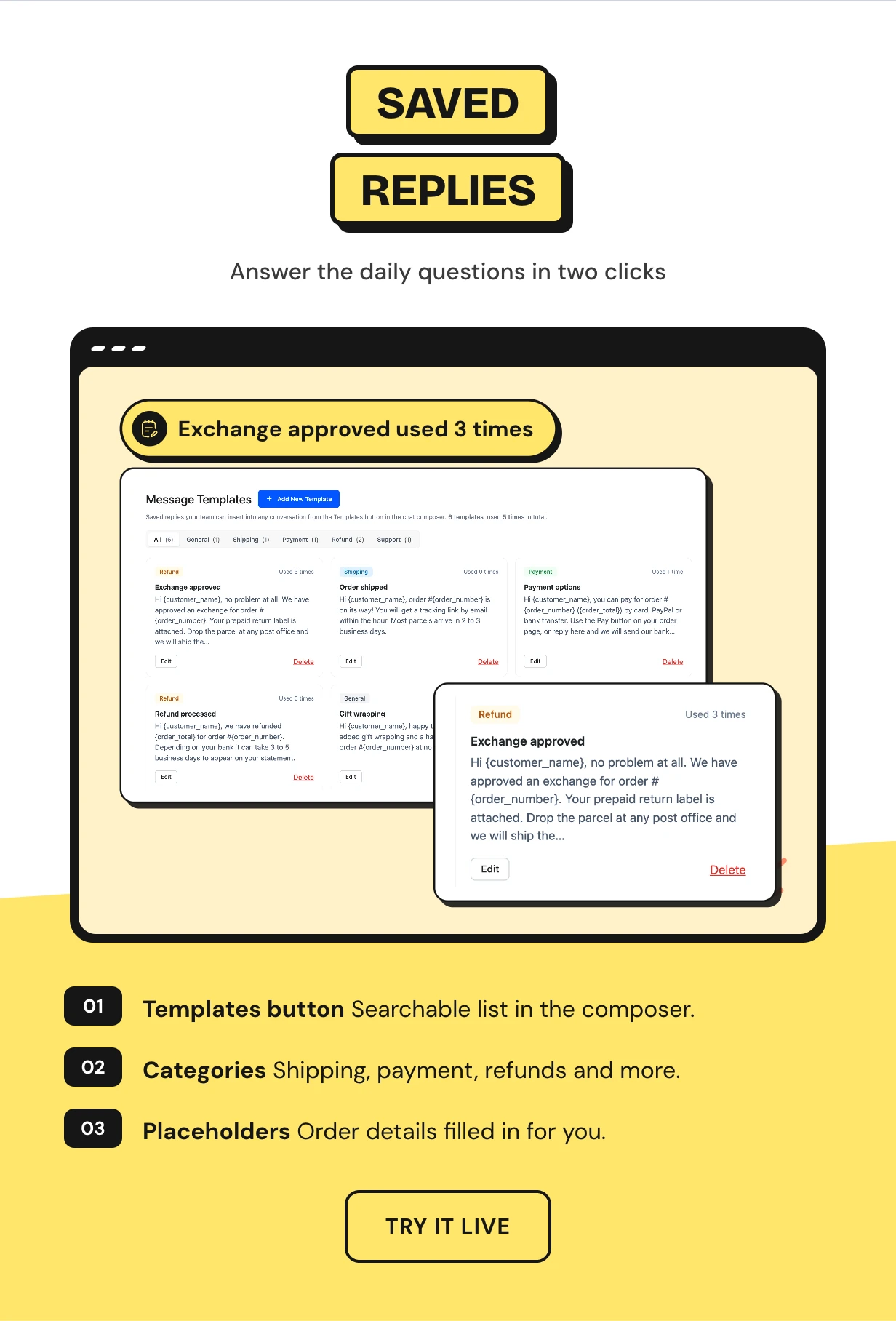
Saved replies for support questions you answer every day
Write your answers to shipping, payment and refund questions once. Insert one from the Templates button in the chat and edit it before you send.
Placeholders such as {customer_name} and {order_number} fill themselves in. Categories and a usage count keep the list tidy.
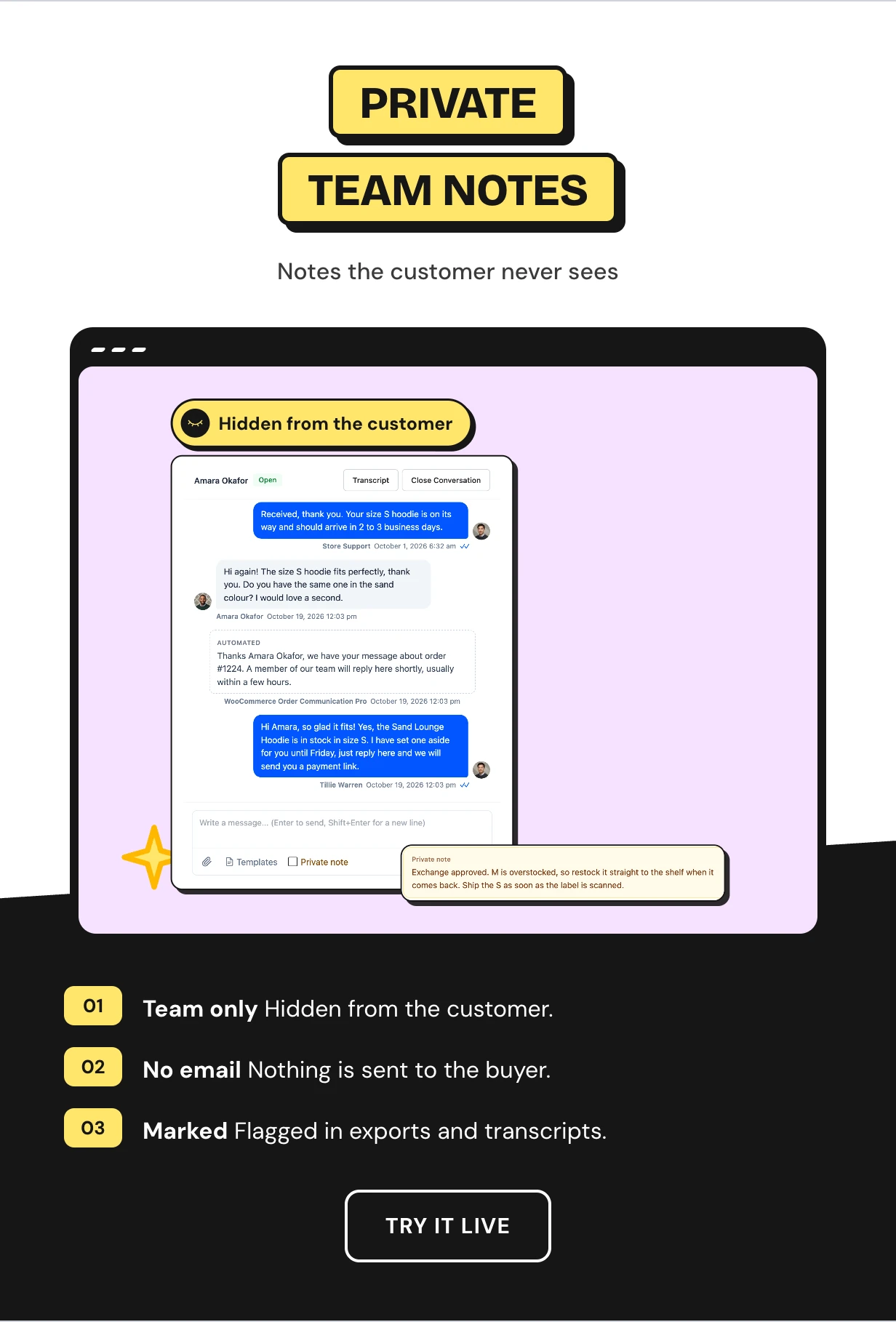
Private notes inside the order conversation
Tick Private note and the message stays inside your team. Leave a hand-off for a colleague right in the thread.
The customer never sees it and gets no email about it. Notes are marked in the CSV export and the transcript.
Customer messages that reach your team by email
Your team gets an email when a customer writes, and the customer gets one when you reply. Both quote the message and link to the chat.
The emails use your WooCommerce email design. Rewrite the subject, heading and body with placeholders.
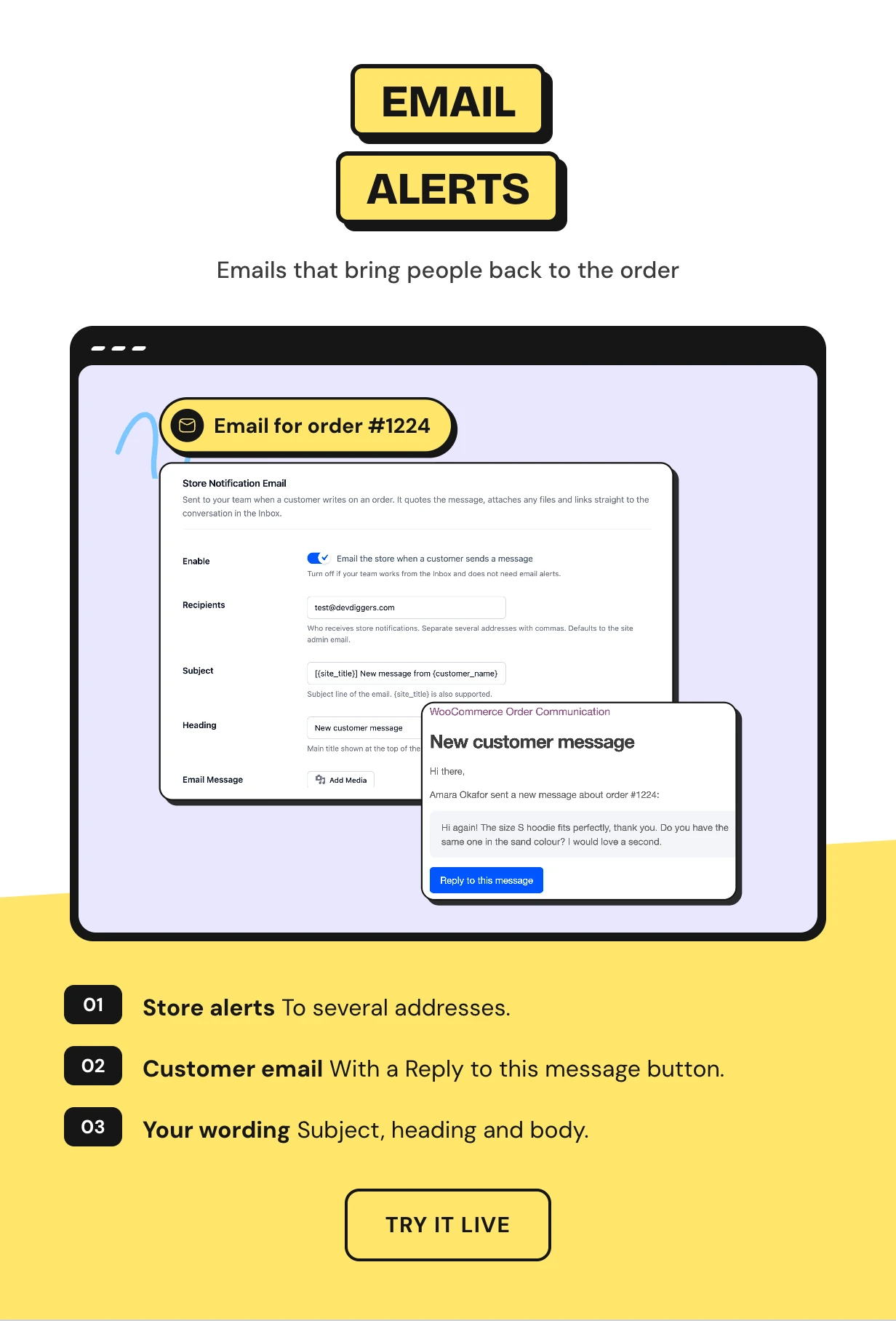
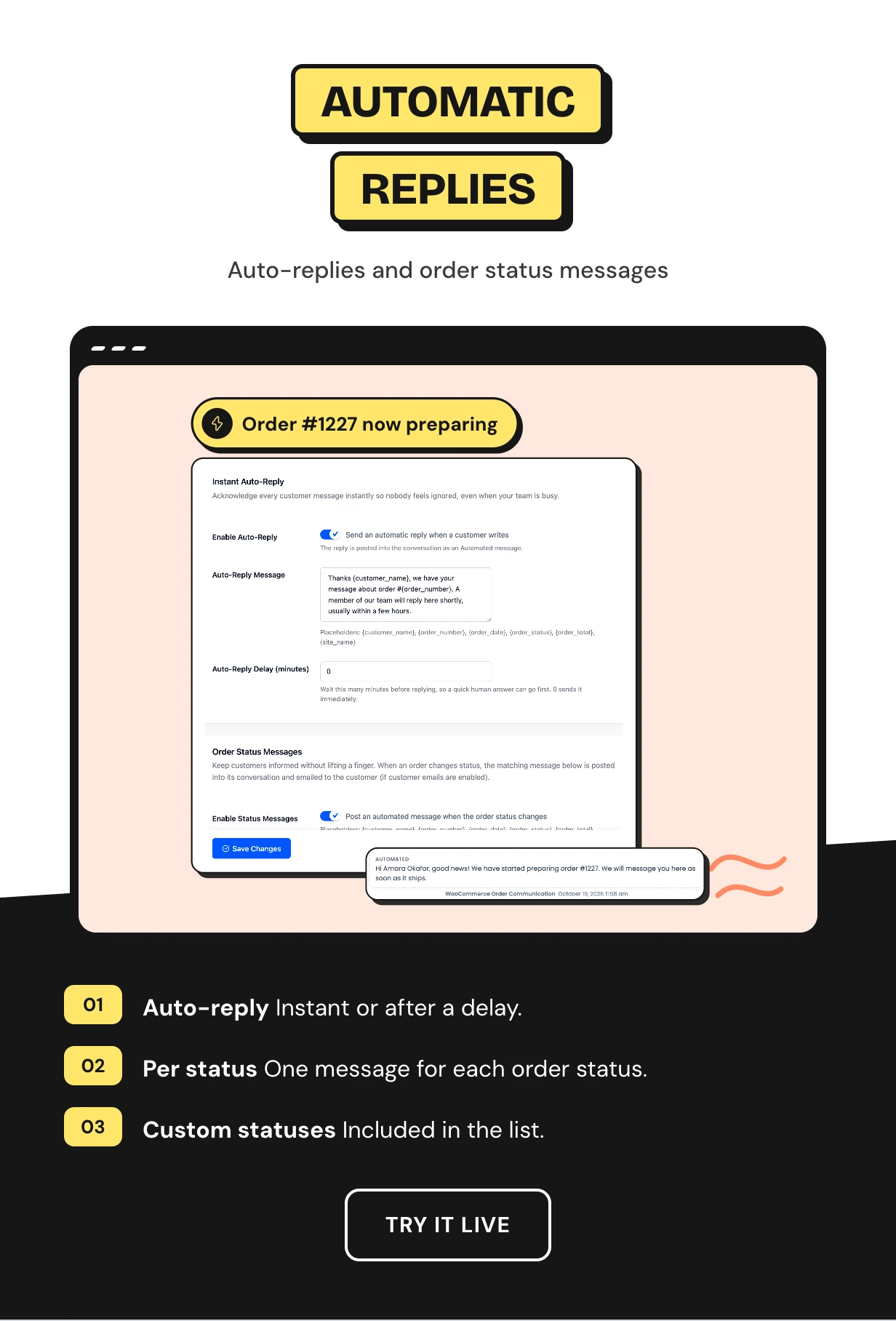
Automatic replies and order messages on each status change
Thank customers the moment they write, or after a delay you choose. They know the message arrived and when to expect an answer.
Post a message into the chat when an order changes status. It works for custom statuses too, and the customer gets it by email.
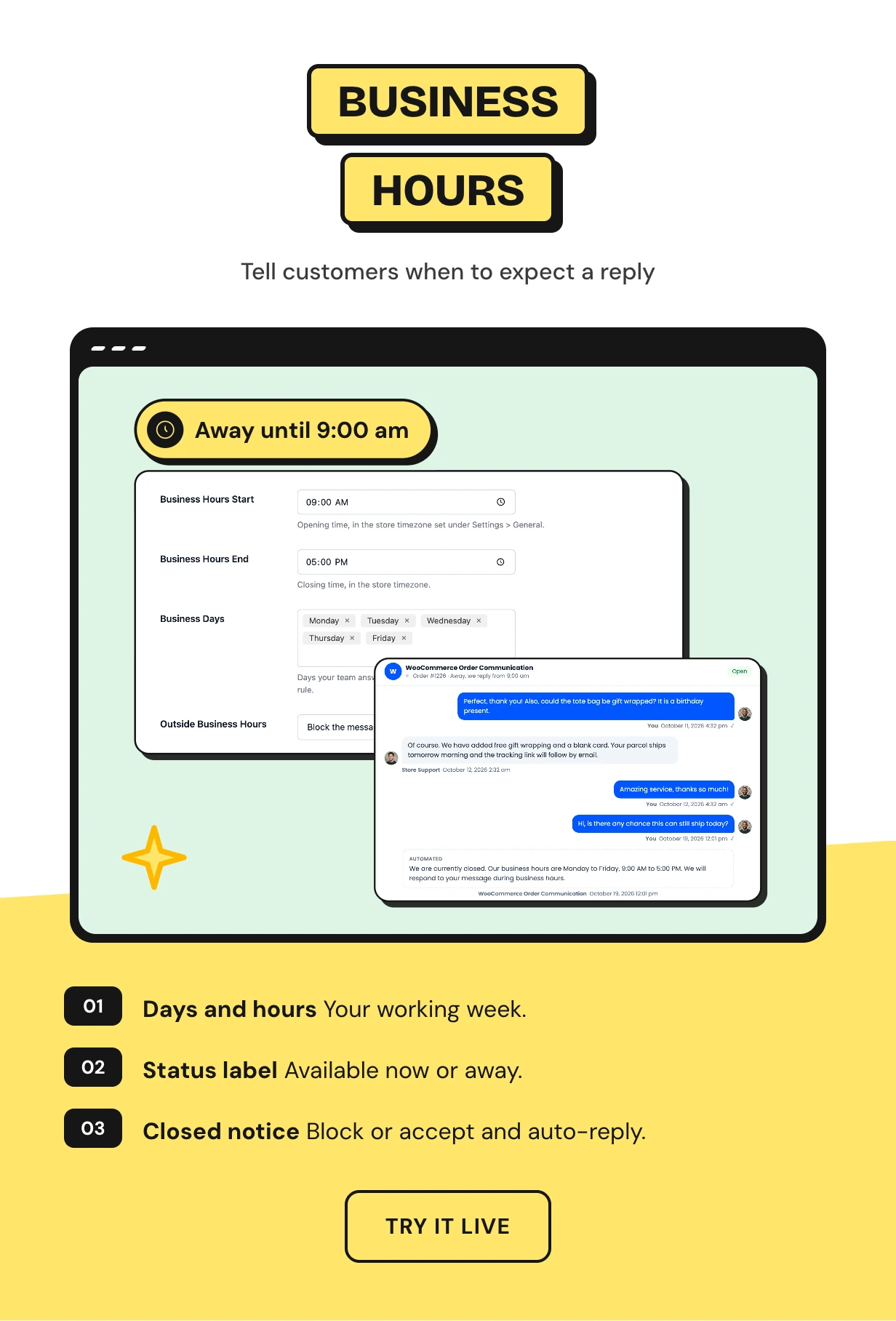
Business hours that set the right expectation
Set your working days and hours. The chat header tells customers whether your team is available now or when you reply next.
Outside those hours, hold new messages with your notice or accept them and auto-reply. Your team can always reply.
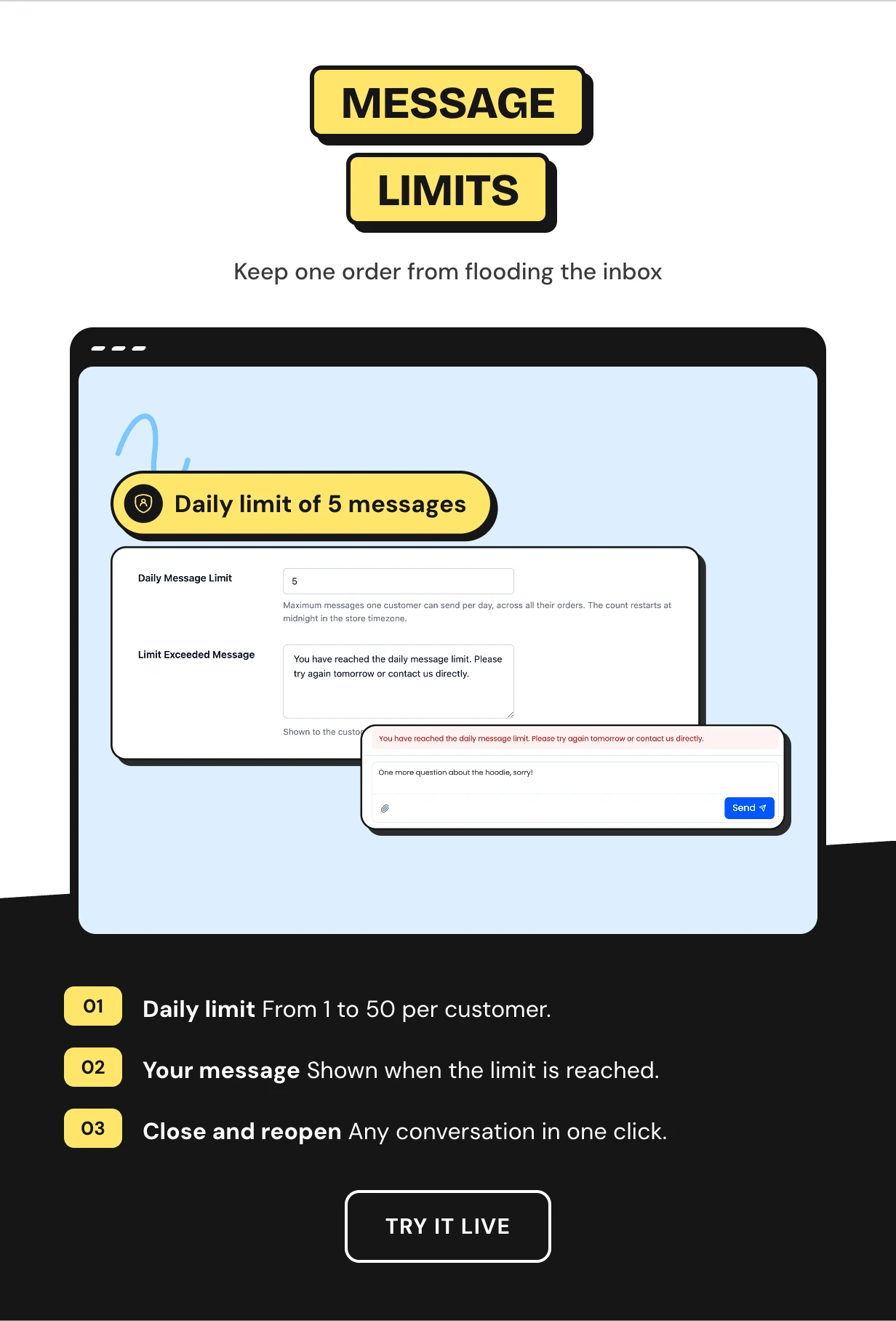
Daily message limits and closed conversations
Cap how many messages one customer can send in a day. The customer sees your own message when they reach it.
Close a conversation when the matter is solved. The customer can write again once you reopen it.
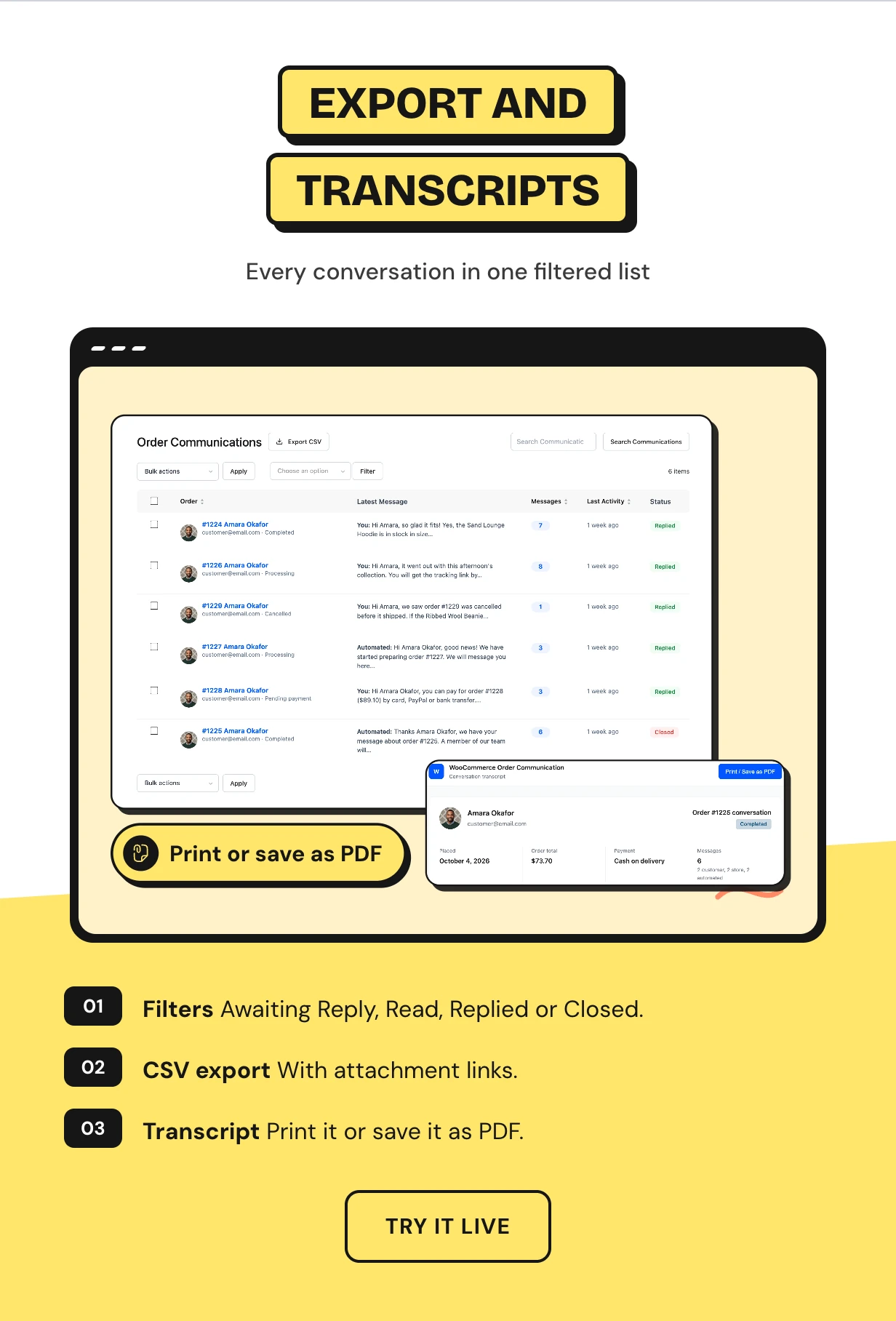
Order messages list with CSV export and printable transcripts
The Communications screen lists every conversation with its status and last activity. Filter by status and act on many at once.
Print any conversation, or save it as a PDF, for a chargeback or a supplier claim. The transcript shows the order, every message and every file.
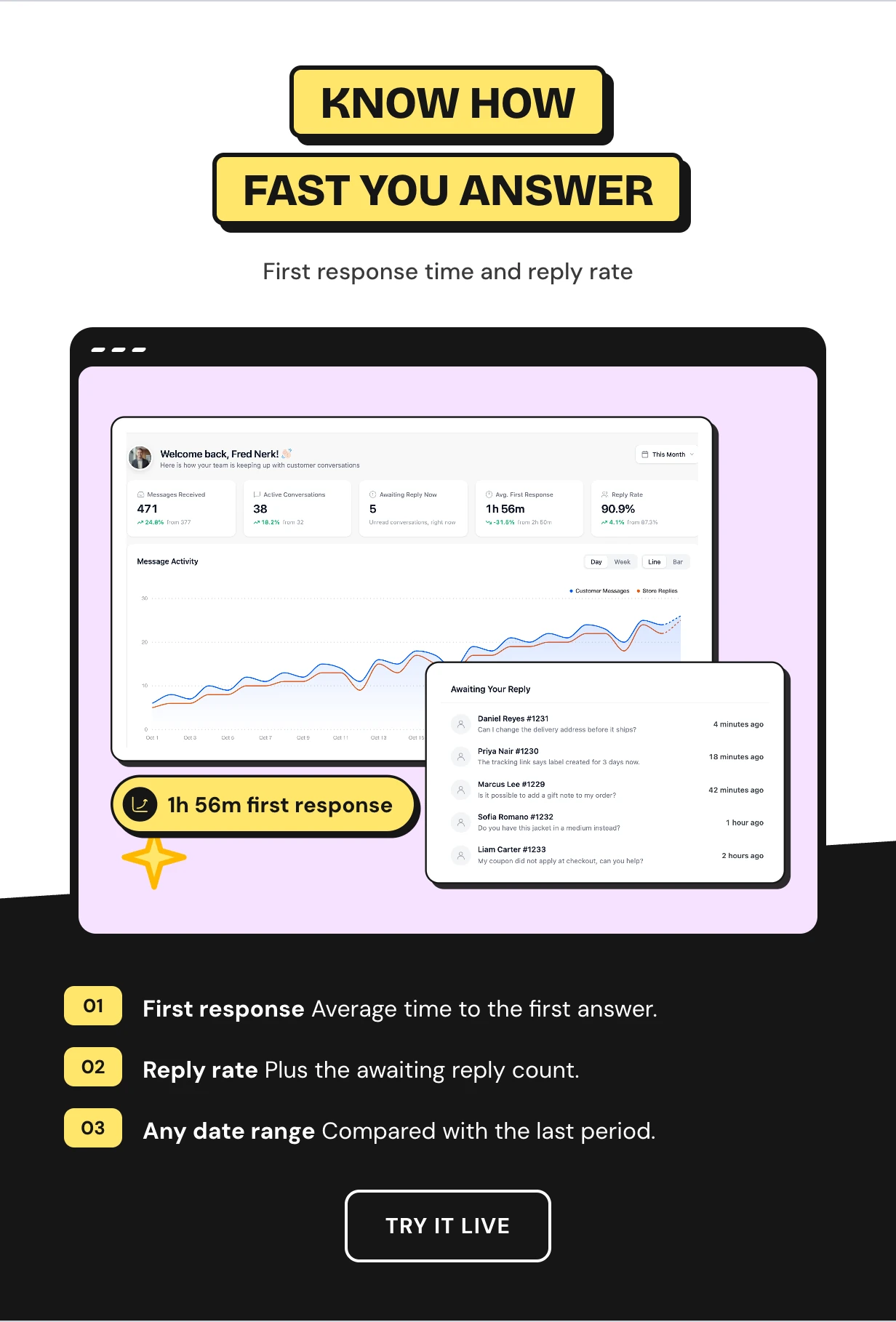
First response time and WooCommerce messaging reports
The dashboard shows messages received, active conversations, chats awaiting a reply, the average first response time and your reply rate.
Charts track daily activity and response time. A list shows who is still waiting.
Full feature list
Customer chat
- Private chat on every order in My Account
- Messages column on the My Account orders list
- New messages appear without a reload
- Seen ticks and unread badges
- Chat only for chosen order statuses
- Bubble colors and refresh interval
Team inbox
- Shared Inbox with search and tabs
- Customer card with orders, total spent and items
- Chat box on the order edit screen
- Messages column on the admin orders list
- Close and reopen conversations
- Shop managers can read and reply
Files and replies
- Photos and files from customers and staff
- Images, PDF, text and Word files
- Drag and drop or paste files
- Saved replies with categories and usage counts
- Private team notes
Emails and automation
- Store and customer email alerts
- Store alerts to several addresses
- Email subject, heading and message with placeholders
- Instant or delayed auto-reply
- Message on each order status change
Hours and limits
- Business hours with days and opening times
- Available now or away label
- Hold or accept messages when you are closed
- Daily message limit per customer
Lists and reports
- Communications list with filters and bulk actions
- CSV export with attachment links
- Printable transcript for disputes and chargebacks
- Average first response time and reply rate
- Conversation status chart
Setup
- Setup wizard
- HPOS support
- Works with any checkout
- Translation ready
- Custom order statuses included
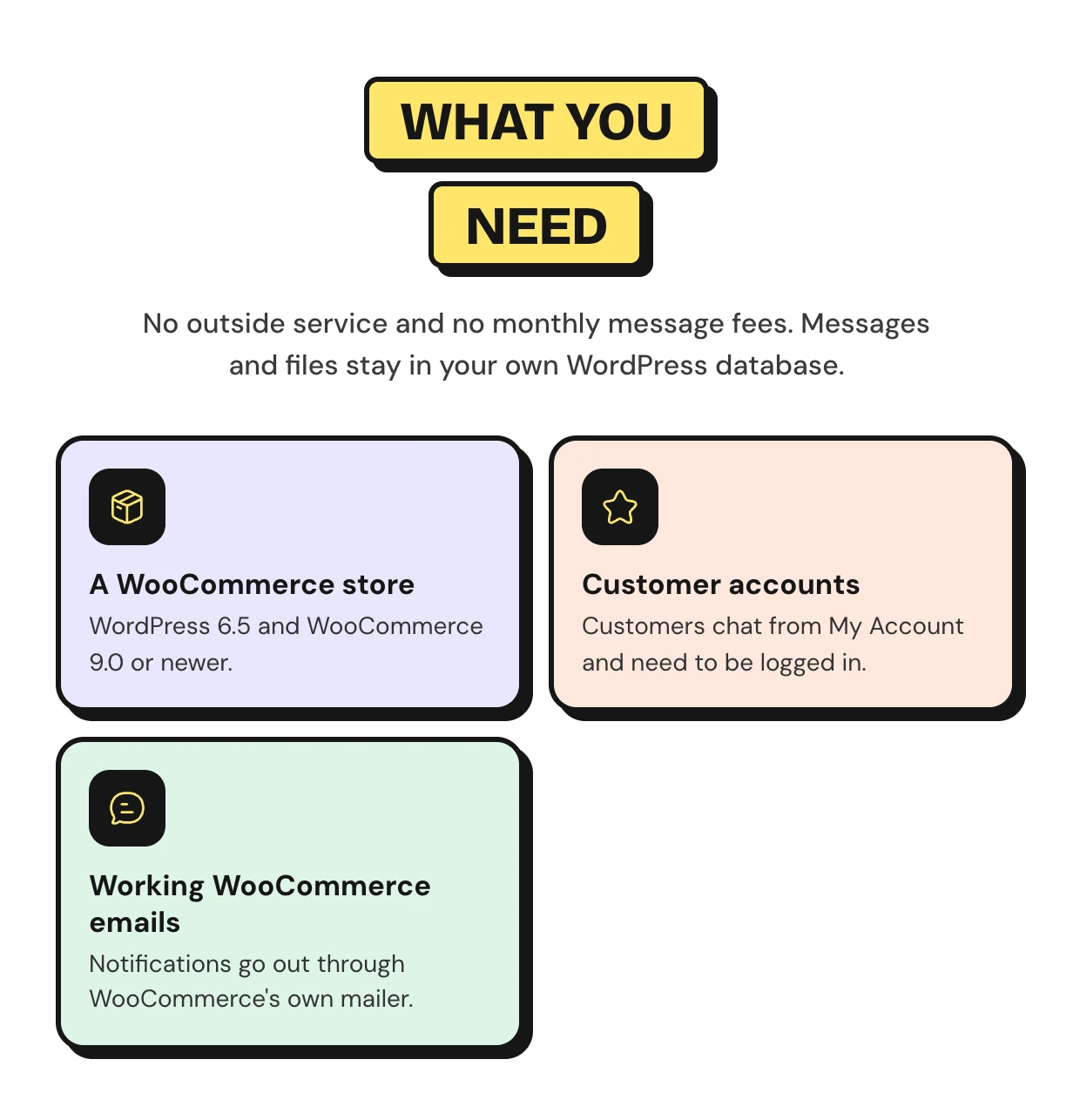
What you need to add order chat to WooCommerce
There is no outside service and no monthly message fee. Messages and files stay in your own WordPress database.
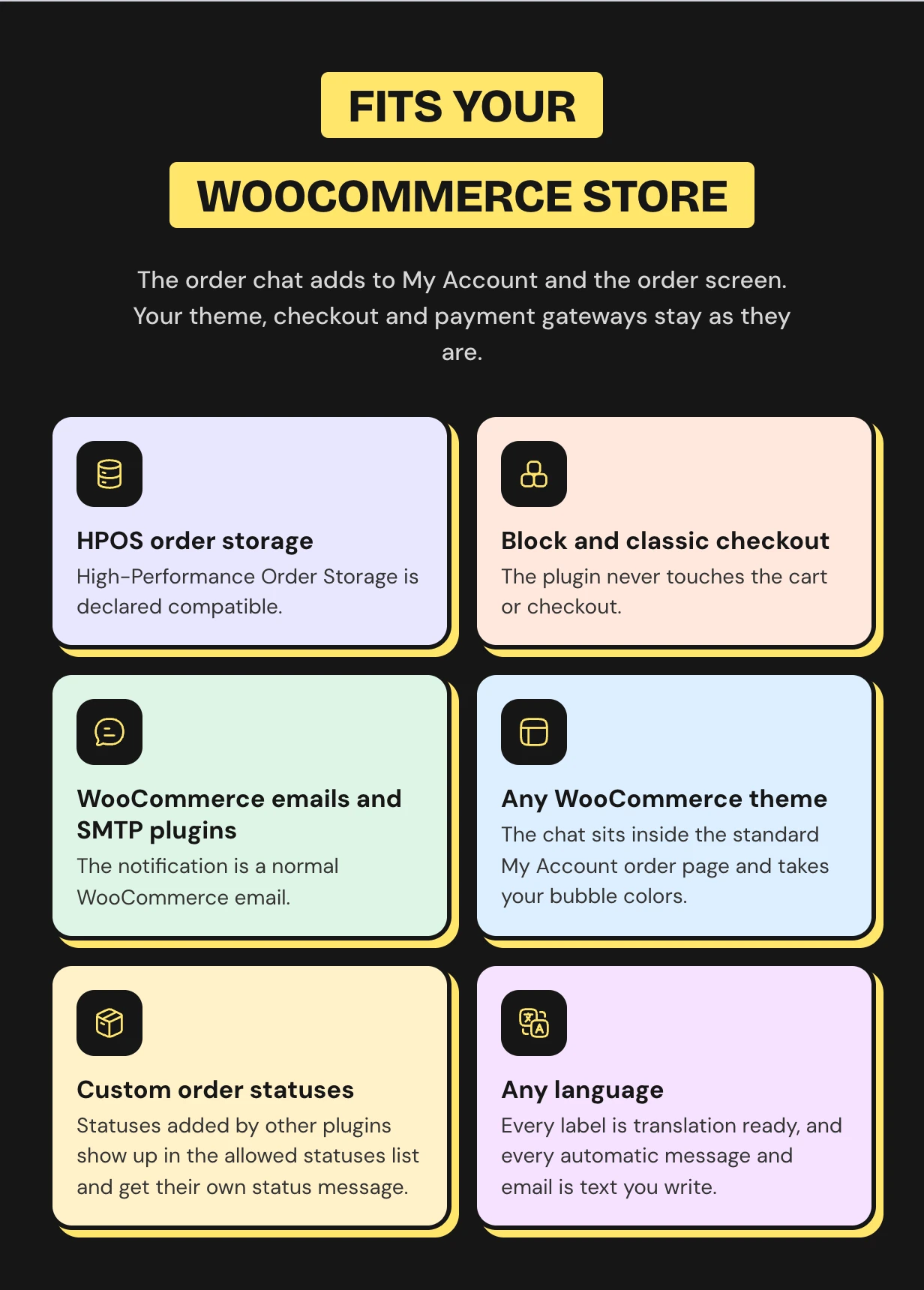
Works with the WooCommerce setup you already run
The order chat adds to My Account and the order screen. Your theme, checkout and payment gateways stay as they are.
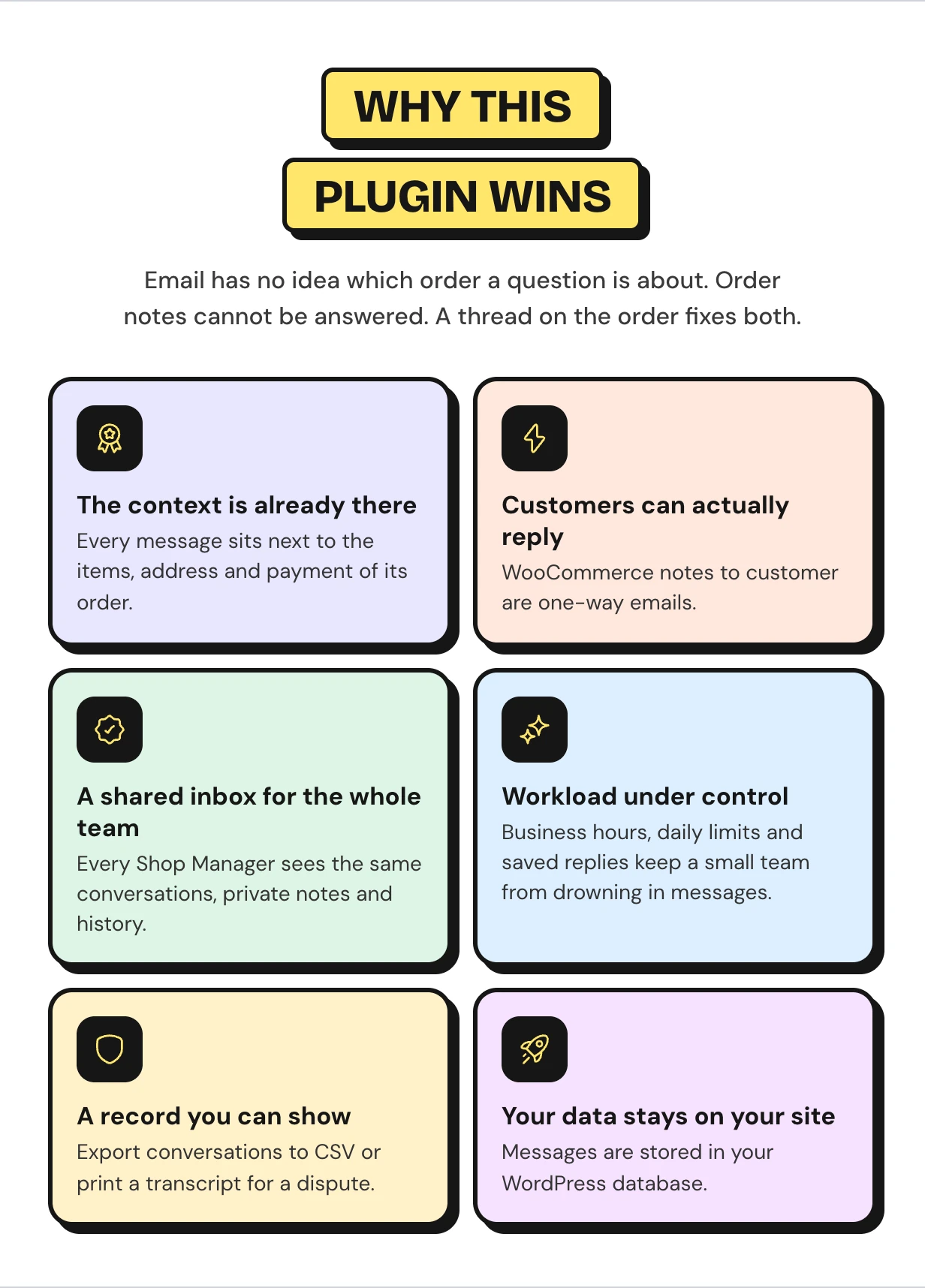
Why a WooCommerce chat plugin should live on the order
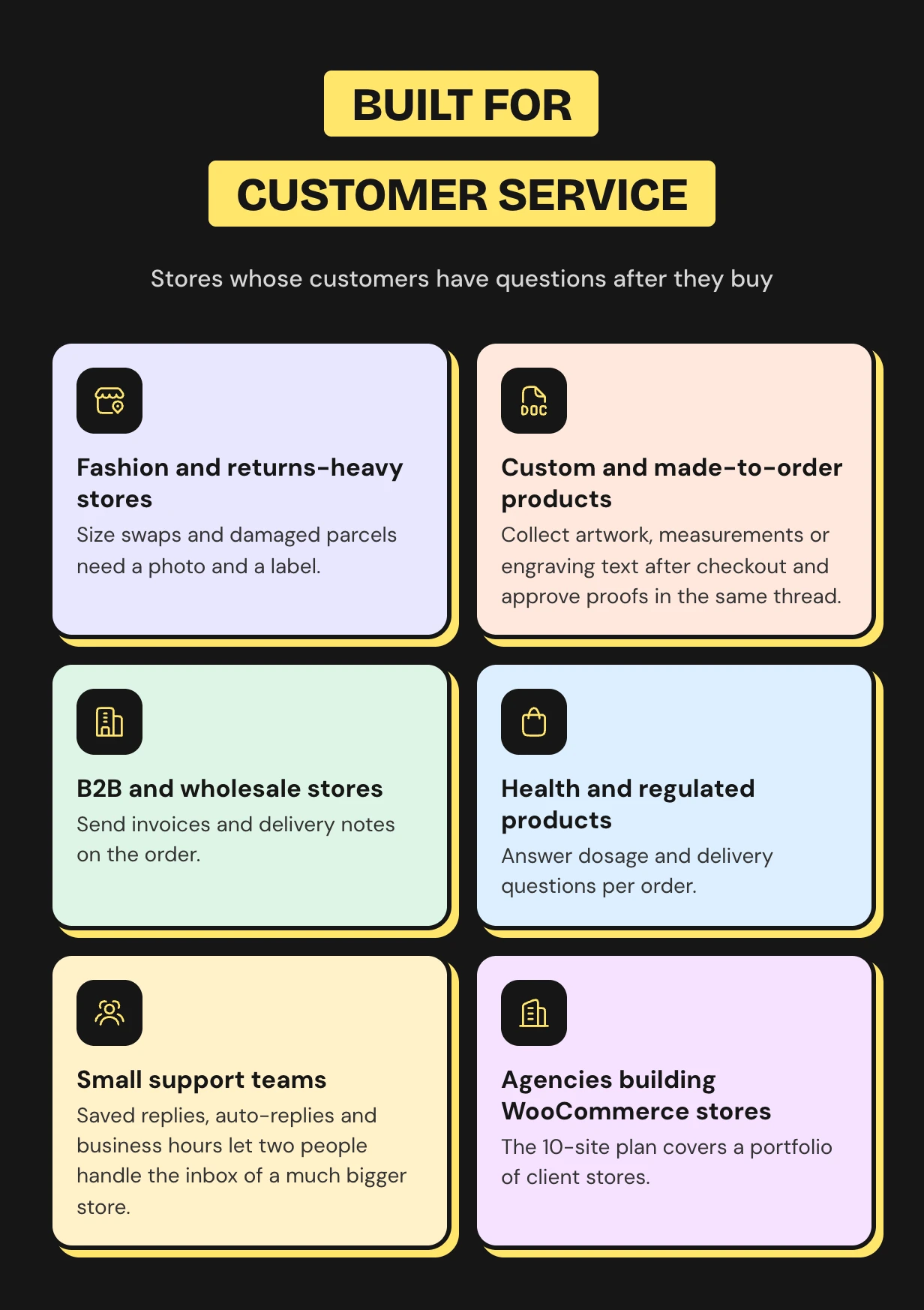
Who this WooCommerce customer service chat is for
What buyers say
WooCommerce order chat questions
How do customers message the store about an order?
They open the order from the Orders tab in My Account. A chat box under the order details lets them write and attach files.
How is this different from WooCommerce order notes?
A note to the customer is a one-way email with no reply on the order. This plugin adds a two-way thread with files, an inbox and email alerts. Your order notes keep working as before.
Where does my team reply?
From the Inbox under Order Communication or from the chat box on the order edit screen. Administrators and Shop Managers can both reply.
Can guest customers use the order chat?
No. The customer has to be logged in to My Account and own the order. Turn on account creation at checkout if many guests buy from you.
Is it real-time live chat?
Close to it. An open chat checks for new messages every 15 seconds by default, and you can set it as low as 5. Emails reach people who are not on the page.
Can customers send photos and documents?
Yes. Customers and your team attach images, PDF, text and Word files. You set the allowed types, a size limit and how many files fit in one message.
Can customers reply by email?
No. Each email has a Reply to this message button that opens the chat on the order. That keeps every message on the order.
Where are the messages stored?
In your own WordPress database, attached to the order. There is no outside chat service.
Is there a free version?
Yes. Order Communication for WooCommerce on devdiggers.com gives every order a two-way chat with the Inbox and email alerts. Pro adds files, saved replies, automation and reports and keeps your messages.
Support and custom work
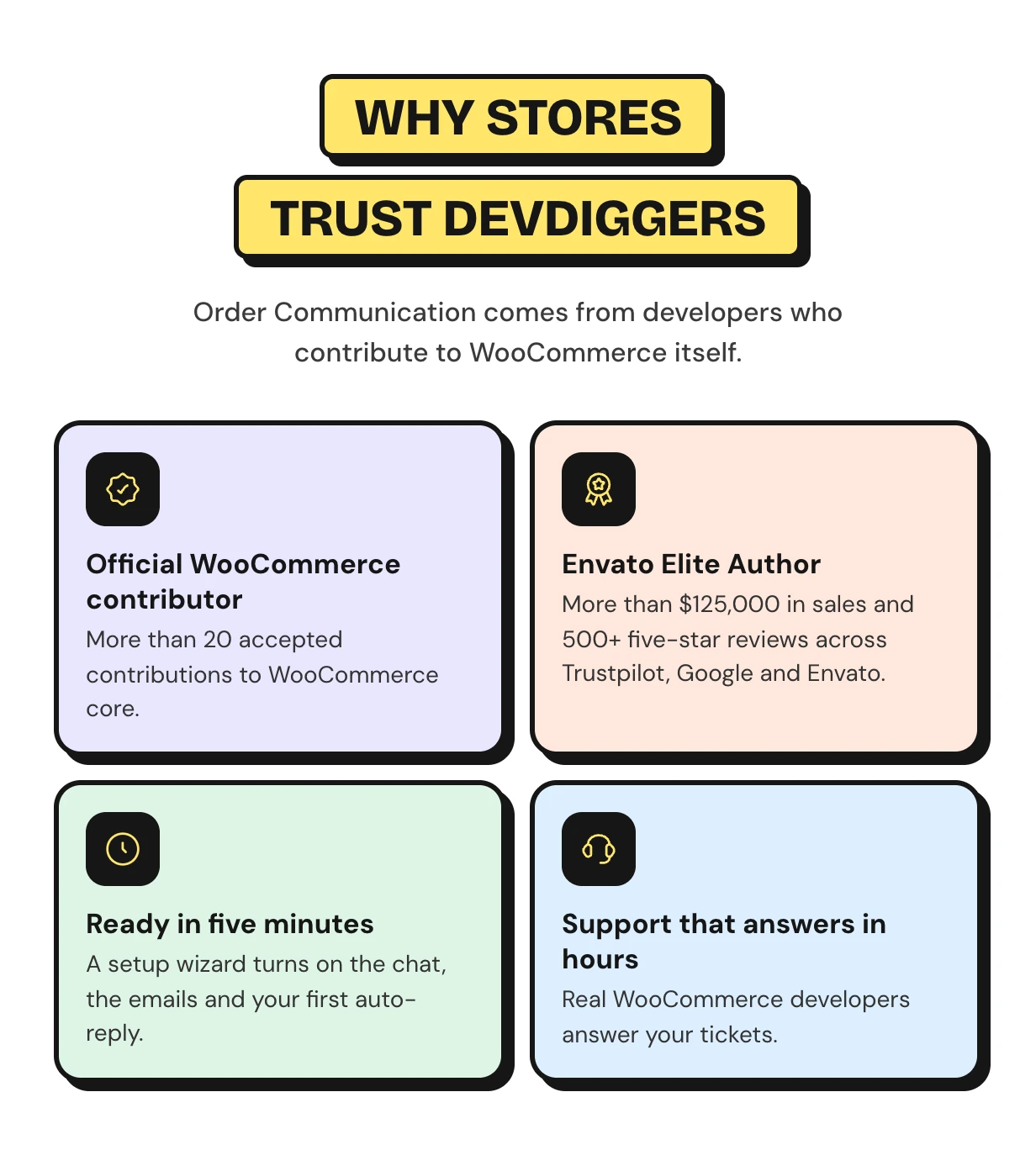
Support comes from the developers who wrote the code, usually within hours. Start with the Order Communication documentation or contact our team. See every feature on the WooCommerce order chat plugin page.
Need a custom workflow on top of the order chat? Our WooCommerce development services team builds it for your store.
Requirements
- WordPress 6.5 or newer
- WooCommerce 9.0 or newer
Changelog
v 1.3.0
Added compatibility with the latest WordPress and WooCommerce.
Added WooCommerce HPOS compatibility.
Resolved security issues.
v 1.2.0
Added WordPress translation in the communication editor.
Added compatibility with the latest WordPress and WooCommerce.
Resolved security issues.
v 1.1.2
Added compatibility with the latest WordPress and WooCommerce.
Resolved security issues.
v 1.1.1
Added compatibility with the latest WordPress and WooCommerce.
Updated license API.
Resolved security issues.
v 1.1.0
Added compatibility with the latest WordPress and WooCommerce.
Added chat box on order received page.
Added compatibility with attachment icon with all themes.
Added new hooks.
Resolved security issues.
v 1.0.2
Added compatibility with WooCommerce 5.7.x
Added new hooks.
Fixed security issues.
v 1.0.1
Added compatibility with WordPress 5.8.x
Added compatibility with WooCommerce 5.5.x
Added empty message check.
Added new hooks.
Removed notice display on all pages from the backend.
Fixed security issues.
v 1.0.0
Initial Release
Download Now
LIVE PREVIEWBUY FOR $99


